I Built My Family a Japan Trip Itinerary App With AI Inside
- Category
- AI & Local LLM
- Posted
- July 11, 2026
- Updated
- September 16, 2026
- By
- Jacob Lloyd — written with AI assistance, post-project
- Read time
- 10 min read

In plain terms: I made a little website just for my family's trip to Japan — it shows each day's plan, the weather, maps, and works on your phone even with no signal. It also has a small AI helper button that can answer trip questions and tweak the plan. This article is the honest story of how I built it with a lot of AI help: what worked, what broke, and how I made a fragile design-tool export into something safe to edit and safe to put on the web. You can download a cleaned-up sample and open it in any browser.
My family took a trip to Japan, and I wanted everyone to have the plan in their
pocket — every day laid out, maps a tap away, the weather, and the little details
that are easy to forget when you’re jet-lagged in a train station. So I built a
small web app just for us: a private, PIN-gated itinerary with a day-by-day
schedule, live weather, offline support, and — because it’s me — a built-in AI
assistant that can answer questions about the trip and even make small edits.
This is the honest build story: the parts that worked, the parts that broke in
ways I didn’t expect, and how a fragile design-tool export became something I was
comfortable putting on the public web. At the bottom there’s a scrubbed sample
you can download and open in any browser.
tl;dr
- What it is: a mobile-first itinerary web app — days, stops, live weather, currency + timezone helpers, offline/installable, with an AI assistant tab.
- The key idea: a beautiful but fragile design-tool export became safe to edit once the entire schedule was driven by one small data file and a build step regenerated the app.
- The gate: a client-side PIN is theatre — the real one is a server-side session with rate-limited lockout.
- The AI: a self-hosted local model, kept on a short leash (answer questions; make only small, guarded edits).
- The lesson that kept repeating: the only way to know a change worked was to render the app in a real browser and look — never trust that the file "should" be fine.
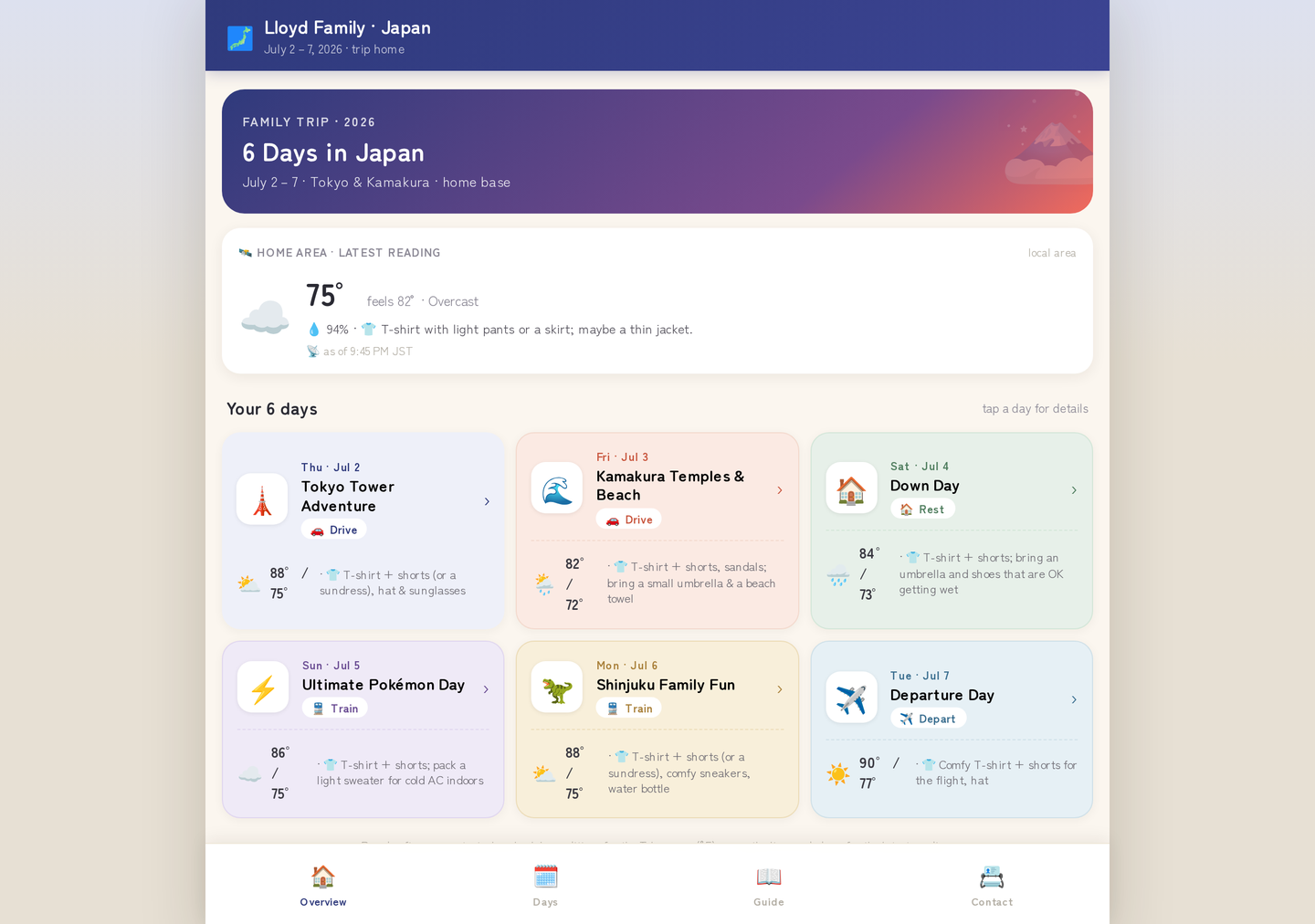
Where it started: a gorgeous black box
I designed the look in an AI design tool and exported it. What came out was a
single self-contained HTML file — a complete React app with the fonts and images
inlined — about 14 MB in one file. It looked fantastic and worked on the first
double-click.
It was also a black box. The whole app, minified, lived in one giant blob, and the
schedule was buried inside it. Editing the trip by hand meant surgery on machine-
generated code. That’s fine once; it’s a nightmare every time the plans change —
and on a family trip, the plans change daily.
So the first real decision was architectural: stop editing the export.
The one idea that made everything else possible
Instead of touching the 14 MB bundle, I moved the entire schedule into a small,
readable data file — one content.json with the days, the stops, the weather
notes, per-stop photos and costs. Then a short build step reads that file and
regenerates the app from the pristine export.
This changed the whole character of the project. Now “add a stop” or “fix a time”
is a two-line edit to a data file that a human — or an AI assistant — can make
safely, followed by a rebuild. The fragile part (the 14 MB app) is never touched by
hand. Every widget I added later — a live weather card, a dual your-time ↔ Tokyo
clock, a two-way currency converter, expandable stops with photos and parking notes
— is generated from that same data-driven build.
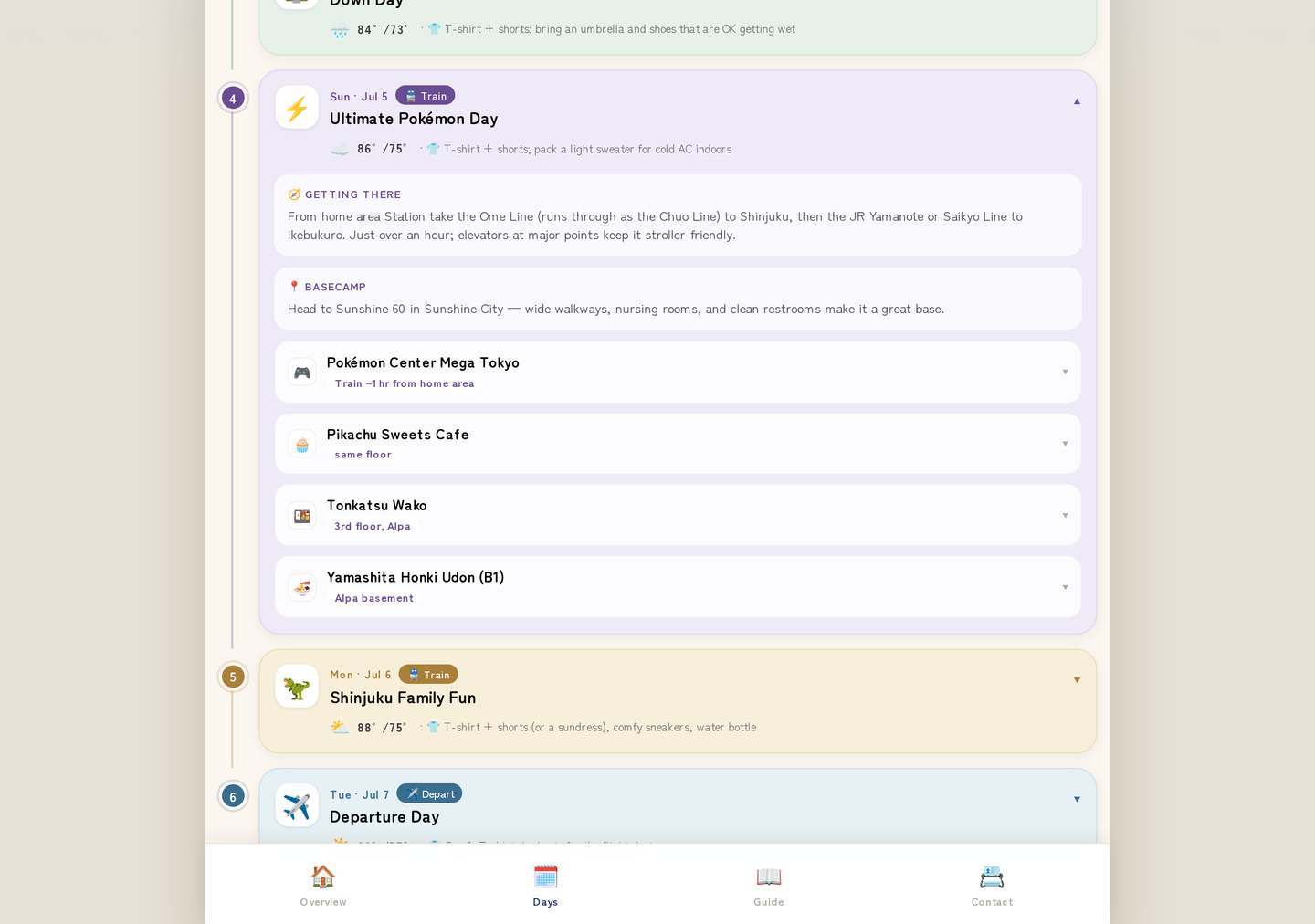
content.json; none of it is hand-edited HTML.The gotcha that ate every widget: the app rebuilds itself on boot
Here’s the trap that cost me the most time, written down so it doesn’t cost you any.
The exported app rebuilds the entire page when it boots. If you inject your own
markup into the static HTML — a clock, a banner, anything — it is wiped the instant
the app mounts. Your element IDs vanish, getElementById returns null forever,
and your widget silently never appears. Worse: if you “verify” by searching the saved
HTML file, your markup is right there, so it looks fine. It just never survives to
the screen.
Two rules fixed it for good:
- Inject into the app’s own template, not the page. Add your widget where the
app builds its UI, so it’s rendered as part of the app and survives the boot. - Wire behaviour with event delegation on
document. The app re-mounts whole
sections as you switch tabs, destroying and recreating their nodes. A listener
attached to a button dies on the next re-render; one delegated listener on
document(that checks what was clicked) survives everything.
The corollary is a testing rule I now treat as law: do not verify a web UI by
grepping the file or checking for HTTP 200. Render it in a real (headless) browser,
after it boots, and actually look at the result. That is the only check that catches
this class of bug — and I caught several this way, including a currency converter that
was invisible until I moved it into the template.
“Self-contained” wasn’t
The export claimed to be a single self-contained file. It wasn’t quite. It quietly
pulled its UI framework from a public CDN at runtime, assembled from URL fragments in
code — so a plain text search for the CDN found nothing, and the file looked offline-
ready while being anything but. On a web host with a strict security policy, that
hidden fetch was blocked and the whole app failed to start. On my laptop, with no such
policy, it worked — so it was invisible until it hit the real server.
The fix was to self-host the framework (bundle it alongside the app so there’s no
outside fetch) and, for the downloadable sample, to inline it directly so the whole
thing really is one file that opens from disk with no internet at all. If you take one
practical thing from this section: “it works on my machine” and “it works behind a real
web server’s security headers” are different claims — test the second one.
The gate: theatre vs. an actual lock
The first version gated the site with a PIN in the page’s JavaScript. That’s
security theatre: the entire itinerary is sitting in the page source, so anyone
who can open dev tools can read it without ever typing the code. Fine for hiding a
surprise party from a casual glance; not fine for anything you actually care about.
The real version moved the gate to the server: submit the PIN, the server checks
it and starts a session, and only then does it hand over the itinerary. It also has a
per-IP, escalating lockout — a handful of wrong guesses and that address is timed
out for progressively longer, so nobody can machine-gun every 6-digit code.
I’ll be honest about the limits, because pretending otherwise is how people get
burned: a 6-digit PIN that’s only rate-limited is fine for a low-stakes family
itinerary, but it is not bank-grade. If you’re gating something sensitive, use a long
passphrase and a proper login. Match the lock to what’s behind the door.
The AI assistant, on a short leash
The fun part: a little assistant — I named it Yoshi — living in its own tab. In
the private family version it can answer questions about the trip (“what’s the plan
for the aquarium day?”, “what should we pack?”) and make small, guarded edits to
the schedule. The whole point is that it edits the same safe data file, never the
fragile app — and it’s fenced in: it can add or tweak, but it can’t delete days, and
the flights and reservations are hard-locked so no chat message can touch them.
Crucially, Yoshi runs on a self-hosted local model — a small AI on my own
hardware, not a paid cloud API — reached through a guarded relay. That’s a whole
topic on its own (safely putting a locally-hosted chatbot on the public web, and how
slow it is on consumer hardware), so I wrote it up separately:
Putting a Chatbot on the Public Web — On My Own Hardware.
Note on the downloadable sample below: the assistant tab is there so you can see
where it lives, but in the sample it is deliberately switched off — it isn’t wired
to any AI and won’t answer. To make it work in your own copy you’d point it at your
own local model. That’s on purpose: I’m not going to ship a public file that quietly
phones a running AI.
Offline, installable, and abroad-proof
The last set of touches were about the reality of using this on a trip: patchy hotel
Wi-Fi, no data on the plane, roaming that comes and goes. So the app became an
installable PWA — add it to your home screen and it opens like a real app — and it
works offline, serving the whole itinerary from the device once you’ve loaded it.
The one rule I was careful about: it only caches the itinerary after a successful
unlock, so the gate is never bypassed by the offline cache. Online, it always re-checks
the gate; offline, it trusts the copy already on your own phone. For a family travel
plan, that’s the right trade.
(Service workers have sharp edges — an old cached version can keep serving a stale page
long after you’ve shipped a fix. I learned to always ship an updated worker, never just
delete the old one, so browsers actually pick up the change.)
Testing it like it’s real, because it is
Because the family was using this while travelling, I treated every change like a
deploy: build it, render the real page in a headless browser after boot, drive the
actual tabs and buttons, and only then ship. Mid-trip I pushed small live fixes this
way — a badge that highlights the current day of the trip (anchored to Tokyo time, not the
viewer’s phone), refreshed weather, a couple of layout nits — each one verified in a
real browser first. It’s the same lesson as the boot-rebuild gotcha, earned again:
the file existing is not the feature working.
Try it — download the sample
The download below is a scrubbed public sample of the app. Every name, date,
address, and detail is fictional demo content; it’s a fictional 7-day Tokyo plan.
Open index.html in any browser — no install, no server, no account. It works
offline; only the live-weather card and map links reach the internet.
Two honest caveats. First, it’s a single ~14 MB file because the entire app,
fonts, and images are inlined so it runs with zero dependencies — that makes it
slow on the first open; a production build would split and compress all of that.
Second, as noted, the AI assistant is switched off in the sample — the tab opens
and tells you so.
Build one yourself
The “implement this yourself” box at the top isn’t a slogan — this write-up is meant
to be handed straight to an AI assistant, the same way I cover for any open project in
How to Have an LLM Adapt Any Project to Your System.
The recipe, condensed:
- Put the plan in a data file. Days, stops, notes, weather — one readable file
that is the single source of truth. - Generate the app from it. A deterministic build step turns the data into the
UI, so edits are always to the data, never to generated code. - If you start from a design-tool export, respect its boot. Inject into the app’s
template, use delegated events, and self-host anything it fetches. - Gate on the server, not in the page. A session plus rate-limited lockout beats
a JavaScript PIN every time. - Make it offline-first if it travels — cache only after a real unlock.
- Verify in a browser, after boot. Not “the file exists.” The screen.
Gotchas, collected
- The export rebuilds the DOM on boot — anything you inject into the page is wiped;
inject into the app’s template instead, and delegate events ondocument. - “Self-contained” may not be — an export can fetch its framework at runtime;
self-host it, and test behind your real server’s security headers, not just locally. - A client-side PIN is theatre — the content is in the page; gate on the server.
- A 6-digit PIN is only rate-limited, not unbreakable — fine for low stakes, wrong
for anything sensitive. - Service workers cache aggressively — ship an updated worker to roll out a fix;
deleting the old file doesn’t un-register it. - “The file exists” ≠ “the feature works” — render it and look, every time.
Related: Putting a Chatbot on the Public Web — On My Own Hardware, How to Have an LLM Adapt Any Project to Your System, A Small Office of AI Agents on One Mini PC, WordPress to Static With Claude Code.
Downloads
Free for personal use. If it saves you an afternoon, the coffee button's nearby.