Whole Site Export: your whole WordPress site in one zip
- Category
- Tools & Downloads
- Posted
- November 19, 2026
- By
- Jacob Lloyd — written with AI assistance, post-project
- Read time
- 5 min read
In plain terms: WordPress has a built-in Export tool, but it leaves out your pictures and files, and it does not show pages the way visitors see them. Whole Site Export is a free add-on that does it all in one click: it makes one zip with the full export, your whole uploads folder, every page as finished HTML, and your site settings. You install it like any other plugin, click one button, and download the file.
WordPress’s own Export tool gives you one XML file of your posts and pages. It leaves out your pictures and files, and it cannot show a page the way visitors see it, with galleries and shortcodes turned into real content. Whole Site Export fills those gaps. It builds one zip with everything, from one button, on any ordinary host.
The short version
| What it does | Builds one zip: WordPress's full export, your whole uploads folder, every published page as finished HTML, and your settings. |
|---|---|
| Where it lives | Tools, then Whole Site Export. Administrators only. |
| Cost | Free, licence GPLv2 or later. |
| Needs | WordPress 6.0 or newer, PHP 7.4 or newer, no other plugin. |
| Changes your site? | No. It only reads, and cleans up after itself. |
| Next step | Hand the zip to an AI agent: see the WordPress-to-static guide. |
Why a plugin?
If you want to move a site, keep a copy, or turn it into a static site, you need more than the text. You need the pictures, the settings, and the pages as they really look. Page builders and gallery blocks store a recipe, not the finished page. Only WordPress itself can turn the recipe into HTML, so the plugin asks WordPress to do it for every published page and saves the result.
Install it in four clicks
- In your dashboard open Plugins, Add New, Upload Plugin and choose the zip from this page.
- Click Install Now.
- Click Activate.
- Open Tools, Whole Site Export.


Export
The Tools page has one button, Export everything, and two options that start unticked.

Click the button and leave the page open. A progress bar shows each stage. The work runs in short steps, so a host that limits each request to a few seconds does not stop it. If your connection drops, reload the page and click Resume.

When it reaches 100 percent a Download the zip button appears.

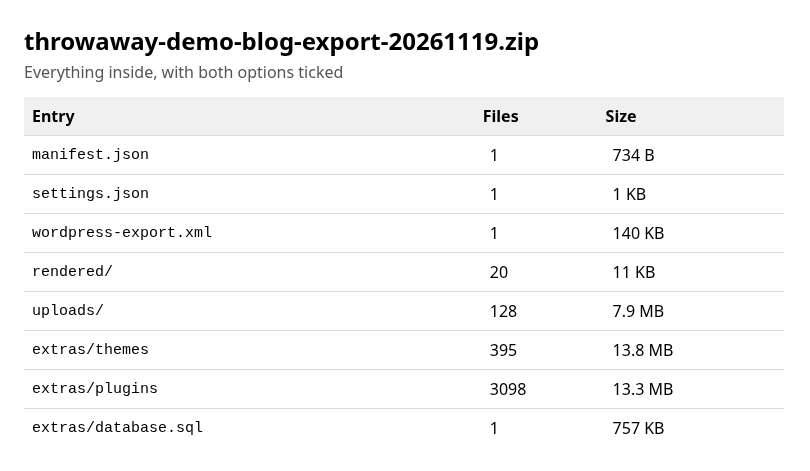
What is in the zip
| Entry | What it is |
|---|---|
wordpress-export.xml |
WordPress’s own “All content” export: posts, pages, comments, categories, tags, menus. |
uploads/ |
Your whole uploads folder, same paths as on the site. |
rendered/ |
One HTML file per published post, page or custom entry, plus an index. |
settings.json |
Title, tagline, address, language, menus, custom CSS, front page, logo and icon. |
manifest.json |
A receipt: counts, versions, and the files that had to be skipped, with the reason (the first 200, then a count). |
Drafts, private posts and password-protected pages are not rendered (the manifest notes each password-protected entry it left out). They are still inside wordpress-export.xml, exactly as in WordPress’s own export, with their passwords and with the email addresses of authors and commenters. So keep the zip private even without the two options below.
The two “everything” options
Both are off until you tick them.
- Themes and plugins folders. Adds your theme and plugin files under
extras/. The zip gets bigger. - Database dump. Adds
extras/database.sql, a plain SQL file written by the plugin itself, with this site’s tables only. It needs no command line.

The database dump contains user accounts, email addresses and password hashes, and plugin settings that can include private keys. The screen warns you before you tick it. Keep that zip private, never send it to a service you do not trust, and delete it when you are finished.
Safety
- Never included:
wp-config.phpand files that look like copies of it, your salts and keys,.envfiles, key files, database dumps found among your files, and logs (the database option above is the one exception, and only when you tick it). Symbolic links and common backup, cache and private form-upload folders are left out too. The manifest lists what was skipped (up to 200 entries, then a count). These rules go by file and folder names: a secret saved under an ordinary name in your uploads folder is copied like any other file, and so is a plain.zipbackup someone left there. - Who can use it: administrators only. Every action also checks a security token tied to your login, so a forged link cannot start an export.
- Where the work happens: in PHP’s temporary folder, outside your website, when the server has one with enough room. Otherwise in a folder inside your uploads folder with a random name; the export then goes on only after your browser has confirmed that the folder cannot be read from the web, and it is refused if it can. The zip is handed over only through a signed-in download.
- Clean-up: the folder is deleted after the download, when you click Discard, once a day for anything older than a day, and when you deactivate or delete the plugin in the dashboard.
- No outside calls: the plugin contacts no other server, and it blocks outside requests while it renders your pages.
What we tested, and what we did not
We tested on a throwaway WordPress 7.1.5 with PHP 8.3 and MariaDB 11, in containers: a blog with posts, pages, a custom type, a gallery, a shortcode, a table, a menu, custom CSS, 128 upload files in dated folders, plus a draft, a private post and a password-protected post. We installed the plugin through the real Upload Plugin screen in a headless browser, ran the export with the default options and with both ticked, and checked the zip with a script. The counts match WordPress’s own, the shortcode and gallery are expanded in the HTML, the draft and private posts are absent from the rendered pages, and the work folder is gone after the download. A signed-out visitor and an Editor were refused on every action.
We then set PHP to a 5-second time limit and 64 MB of memory and exported about 600 MB of uploads. It finished in about half a minute, in several short requests. WordPress.org’s Plugin Check tool reports no errors and five warnings: four about table names in the database dump, one about calling WordPress’s own content filter on purpose.
Not tested: real shared hosts, multisite, very large sites (hundreds of thousands of files), and languages other than English. One more limit: WordPress’s own export file is written in a single request, so a site with a very large number of posts could still hit a strict time limit there.
What to do with the zip
You now have your whole site in one file. To turn it into a fast static website with an AI coding agent, follow the WordPress-to-static guide.
Downloads
Free for personal use. If it saves you an afternoon, the coffee button's nearby.