Run DisPatch and My AI Tools in Docker: One File, One Command
- Category
- AI & Local LLM
- Posted
- October 19, 2026
- Updated
- October 19, 2026
- By
- Jacob Lloyd — written with AI assistance, post-project
- Read time
- 15 min read
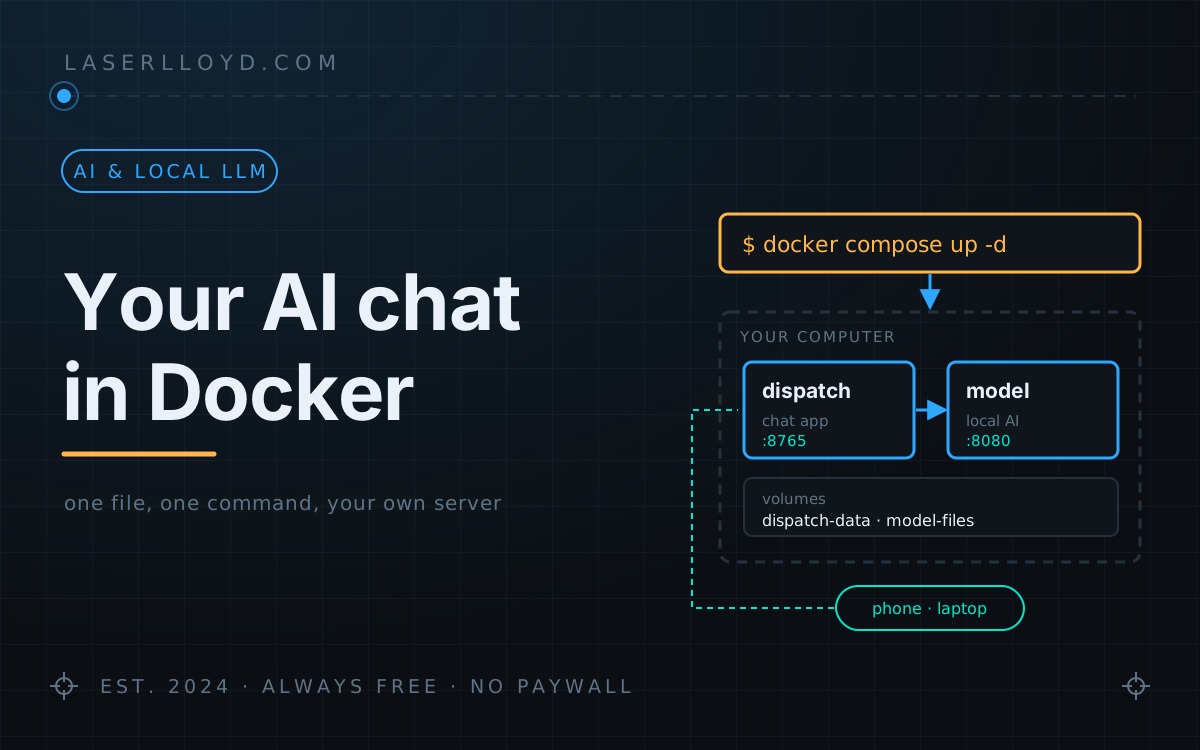
In plain terms: DisPatch is a chat app you run on your own computer and open from any phone or laptop in the house. Docker is a free program that runs software like this in a sealed box, so you don't install Python or anything else by hand. This page gets you from nothing to a working AI chat with one small text file and one command, and it can include a small AI model that runs on your own processor, so you need no account or API key.
I run my own AI chat app, DisPatch, for my household. Until this month, installing it meant Python, a virtual environment and a service file. Now it ships as a Docker image, and the whole setup is one file, one command, your own server. This page walks through it from an empty folder to a working chat, with a small AI model that runs on your own processor so you can try it without signing up for anything.
Every command on this page is one I ran on 2026-10-19. I don't have Docker Desktop on this machine, so I used Podman 5.8 with Docker Compose 5.6 on Linux. The commands are the same; where Podman needed something extra, I say so in the technical part at the end.
tl;dr
- What you get: DisPatch, a private chat app for the browser and the phone, plus an optional small AI model, both running in containers on your computer.
- What you do: install Docker, save one 26-line file, run
docker compose up -d, openhttp://localhost:8765and answer a six-step setup wizard. - What it costs: nothing. About 600 MB for the DisPatch image, 860 MB for the model server image and a 2.5 GB model download.
- What it never does: send your chats anywhere you didn't connect. With the local model, nothing leaves your computer except the weather and web lookups you ask for.
- The honest part: DisPatch is the only one of my images published on a registry as of 2026-10-19; the other tools build from their source code with one extra word. The small local model is fine for everyday questions, not for hard reasoning.
What you end up with

Atlas is the character a new DisPatch starts with. It answers questions, and with a model that supports tools it can look things up: web search, a page fetch, weather, Wikipedia, exchange rates, the time and a calculator. The same chat opens on a phone:

For what DisPatch does beyond this (profiles for every person in the house, a kids' view, backups), see the DisPatch 3.0 article. This page is about getting it running.
Step 1: install Docker
- Windows or Mac: install Docker Desktop and start it once.
- Linux: install Docker Engine and the compose plugin, from your distribution or Docker's instructions.
Check it works by opening a terminal (PowerShell on Windows) and typing docker compose version. Any version number means you're ready.
Step 2: make a folder and one file
Make a folder called dispatch and save this in it as docker-compose.yml:
services:
  dispatch:
    image: ghcr.io/laserlloyd/dispatch_chat:main
    ports:
      - "8765:8765"
    volumes:
      - dispatch-data:/data
    restart: unless-stopped
    init: true
    stop_grace_period: 30s

  # Optional: a small AI model that runs on your processor, no account needed.
  # Delete this block if you will use Ollama, LM Studio or a cloud service instead.
  model:
    image: ghcr.io/ggml-org/llama.cpp:server-b11723
    command: ["-hf", "unsloth/Qwen3-4B-Instruct-2507-GGUF:Q4_K_M", "--jinja",
              "--host", "0.0.0.0", "--port", "8080", "--ctx-size", "8192"]
    environment:
      LLAMA_CACHE: /models
    volumes:
      - model-files:/models
    restart: unless-stopped

volumes:
  dispatch-data:
  model-files:
Two services. dispatch is the chat app. model is llama.cpp's server, which downloads Qwen3 4B Instruct (2.5 GB) on its first start and keeps it. Your chats live in a storage volume called dispatch-data, which survives updates and restarts.
"8765:8765" lets other devices on your network open DisPatch, which is what you want for a family chat. If you only want it on this computer for now, write "127.0.0.1:8765:8765" instead.
Step 3: start it
In a terminal, inside the dispatch folder:
docker compose up -d
docker compose ps
The first start downloads the two images and the model, so give it a few minutes. On my machine DisPatch answered 5 seconds after its image arrived, and the model server took about 20 seconds to download and load the model on my connection. docker compose ps should list both services as Up.
Step 4: create your account
Open http://localhost:8765 in a browser. A new DisPatch is locked until it has an owner, and because it runs inside a container it asks for a one-time setup token. Read it from the log:
docker compose logs dispatch | grep "SETUP TOKEN"
If grep isn't available (Windows), run docker compose logs dispatch and look for the line that starts with SETUP TOKEN:. The token changes every time DisPatch starts, and stops working once the owner exists.

A password needs at least 8 characters. The PIN is optional, for quick unlocking. If you set one, DisPatch writes a recovery code into its data, and you should copy it somewhere safe:
docker compose exec dispatch cat /data/RECOVERY-CODE.txt
Step 5: connect the AI
Step 2 of the wizard looks for a model server on the same computer. Inside Docker it won't find the model service by itself, so type it in:

http://model:8080/v1, no key, and the model name. "Test and save" should come back green.| Box | What to type |
|---|---|
| Type | OpenAI-compatible |
| Address | http://model:8080/v1 |
| API key | leave empty |
| Default model | unsloth/Qwen3-4B-Instruct-2507-GGUF:Q4_K_M |
Using a cloud model instead? Pick it in the same box and paste your key. I tested this with an OpenAI-compatible cloud provider: "Test and save" listed its models and Atlas answered from it. The key goes into DisPatch's own data, not into the compose file.
Step 6: finish and say hello
The remaining steps are short. Voice is a separate add-on you can skip. Family adds more people (you can do that later). Network asks who should reach DisPatch: pick the same answer you chose for the port in step 2.

Press Finish. If the page still shows the "create owner account" form after that, reload the page. That's a display bug in the current build (the account was created; the old form just stays on screen). Then pick Atlas on the left, press + for a new chat and ask it something.
To use it from a phone on the same Wi-Fi, open http://<your computer's address>:8765. Install-to-home-screen, notifications and the microphone need HTTPS, which the technical part covers.
That's the whole setup. Everything below is for when you want to know more, keep your data safe, or add my other tools.
How the pieces fit
The DisPatch image runs as an ordinary user (uid 1000), not root. Everything it writes goes to /data, which is the dispatch-data volume: the SQLite database, uploads, avatars, settings and its own six-hourly snapshots. Remove the container and nothing is lost; remove the volume and everything is.
The image tag main follows the main branch of the DisPatch repository. Published tags on 2026-10-19 are main and one sha-<commit> tag per build; there are no version-number tags yet. If you want the image to stay put until you choose to update, use a sha- tag from the package page. Images exist for 64-bit Intel/AMD and ARM; I ran the Intel/AMD one.
Your data: back it up, restore it, update safely
Stop DisPatch first so its database is written out completely, then copy the volume into a file:
docker compose stop dispatch
docker run --rm -v dispatch_dispatch-data:/data:ro -v "$PWD":/backup alpine \
  tar czf /backup/dispatch-backup.tgz -C /data .
docker compose start dispatch
Compose names the volume after the folder, so a folder called dispatch gives dispatch_dispatch-data; docker volume ls shows the real name. My test install with a handful of chats made a 3.7 MB file.
To restore into a fresh volume (I restored mine and started a second DisPatch on it: same owner, same 8 messages):
docker volume create dispatch_dispatch-data
docker run --rm -v dispatch_dispatch-data:/data -v "$PWD":/backup:ro alpine \
  sh -c 'tar xzf /backup/dispatch-backup.tgz -C /data && chown -R 1000:1000 /data'
docker compose up -d
Don't copy chats.db by itself out of a running container: recent messages sit in the chats.db-wal file beside it until DisPatch stops.
Updating is two commands. I ran docker compose down, pull and up -d on a populated install; the owner and every message were still there, and no new setup token was printed.
docker compose pull
docker compose up -d
Take a backup before you update across a big version; DisPatch migrates its database on start, and an older image may not read the migrated one.
Security defaults, and the one setting to check
- Locked until an owner exists. Until step 1 of the wizard is done, the network sees only a sign-in page, and creating the owner needs the token from the log.
- Visitors who don't sign in get the Restricted view. This surprised me while testing: from a browser that never signed in, I could open Atlas and get replies. That's DisPatch 3.0's design (a guest is treated like a child's Restricted profile, 200 replies a day by default), but those replies use your AI connection. If DisPatch is on your network with a paid cloud key, change Settings → All settings → People & Profiles → "A device that has not signed in" to Sign-in screen only.
- Who can reach it is decided by the port line.
"8765:8765"is your whole network;"127.0.0.1:8765:8765"is this computer only. The container itself always listens on every address inside its own network. - HTTPS is your call. The repository's own
docker-compose.ymlhas an optional Caddy proxy (--profile proxy) for a real hostname with certificates; I did not test it in this round. If you put nginx in front, keepproxy_set_header Host $host;, or the chat loads and then never updates (DisPatch checks that the browser's origin matches the Host header). - The model server has no key. Its port isn't published in the file above, so only DisPatch can reach it. Don't add a
ports:line tomodelunless you also give llama.cpp an--api-key.
The full DisPatch Docker guide, including bind mounts, user ids and the agent integration that does not work well in a container, is docs/deploy-docker.md in the repository.
Adding my other tools
Each of my other tools has a deploy/compose/compose.yml in its repository. Their images aren't on a registry yet, so you clone the repository and add --build. Each build took under a minute here, with the base images already downloaded. I built and started each of these from a fresh clone of GitHub on 2026-10-19:
| Tool | What it is | Image | Port | What I checked |
|---|---|---|---|---|
| DisPatch | the chat app | published, 599 MB | 8765 | everything above |
| MailForge | email assistant that never sends on its own | build, 420 MB | 8090 | dashboard opens, no mailbox connected |
| InfoForge + kiwix | offline Wikipedia search for AI answers | build, 128 MB, plus kiwix 66 MB | none (kiwix 8090) | doctor and search on a 23 MB Wikipedia file |
| ThemeForge | theme preview page | build, 13.8 MB | 8185 | page opens |
| StudioForge | GPU model server | build, 568 MB (Vulkan) | 1234, 8080, 1235 | served a model on an AMD integrated GPU, see below |
| CrucibleForge | model benchmark | build, 129 MB | 8777 | started and opened; no benchmark run |
| TransForge | site translator | build | none | not tested in this round |
Sizes are what Podman reported on disk. The tools' own compose files publish their ports on 127.0.0.1 only, unless you change it.
MailForge
MailForge encrypts your mailbox passwords with a keyring password you choose; it cannot be recovered, so keep it in a password manager. Also point LLM_BASE_URL at your own model server (192.0.2.10 below stands for its address), because the default is port 1234 on the Docker host, and whatever answers there gets MailForge's requests.
git clone https://github.com/LaserLloyd/MailForge.git
cd MailForge
read -rsp 'MailForge keyring passphrase: ' MAILFORGE_KEYRING_PASSWORD; export MAILFORGE_KEYRING_PASSWORD
LLM_BASE_URL=http://192.0.2.10:1234/v1 \
  docker compose -f deploy/compose/compose.yml up -d --build
docker compose -f deploy/compose/compose.yml logs app | grep "MailForge UI"
The log line is a http://127.0.0.1:8090/?token=… address; open it in a browser.

InfoForge and offline Wikipedia
Put a .zim file from the Kiwix library in deploy/compose/zims/ and name it in infoforge.config.yaml (copy it from infoforge.config.example.yaml). I used the 23 MB "Chemistry by Wikipedia" mini file to test.
git clone https://github.com/LaserLloyd/InfoForge.git
cd InfoForge/deploy/compose
docker compose up -d kiwix
docker compose --profile cli build infoforge
docker compose --profile cli run --rm infoforge doctor
docker compose --profile cli run --rm infoforge search "noble gas"
Search works with no AI model at all:
[1] Noble Gas  (score 19.0, 4222 chars)
[2] Gas  (score 16.0, 1586 chars)
[3] Noble gas compound  (score 10.5, 2045 chars)
infoforge ask needs a model server in base_url; with the placeholder address, doctor passes every check except "llm primary", which is correct.
ThemeForge
git clone https://github.com/LaserLloyd/ThemeForge.git
cd ThemeForge
docker compose -f deploy/compose/compose.yml up -d --build
Then open http://localhost:8185.

A GPU model server: StudioForge
StudioForge is my own model server. It runs models on a graphics card, handles several models and several clients, and since version 2.0 wants an owner account and an API key for every client. Its image isn't on a registry yet, so this part builds it.
I expected to say "NVIDIA only" here. The mini PC I tested on has no NVIDIA card, only AMD's integrated Radeon GPU in a Ryzen AI 9 365. I built the Vulkan image anyway, passed the GPU in, and it worked: StudioForge downloaded the matching prebuilt llama.cpp engine from GitHub on first start, tested it, and served Qwen3 4B with every layer on the GPU at 23 to 28 tokens per second. For comparison, the CPU-only model service above did 22 tokens per second with the same model, so on this chip the GPU frees the processor more than it speeds up replies.

git clone https://github.com/LaserLloyd/StudioForge.git
cd StudioForge/deploy/compose
cp env.example .env
# in .env: SF_BACKEND=vulkan, SF_MODELS=/path/to/your/gguf/files,
#          SF_OWNER_PASSWORD (a password of 10 or more characters),
#          SF_VIDEO_GID and SF_RENDER_GID = the numbers from: getent group video render
docker compose -f compose.yml -f compose.vulkan.yml build
docker compose -f compose.yml -f compose.vulkan.yml up -d
docker compose -f compose.yml -f compose.vulkan.yml exec studioforge \
  studioforge keys create --name dispatch --scope inference
The last command prints a key once. The control panel is on http://localhost:8080 (user owner, your password). For an NVIDIA card the file is compose.cuda.yml and SF_BACKEND=cuda; I did not test that path here, and the CUDA image is much bigger.
DisPatch and StudioForge together
DisPatch's repository has deploy/compose/stack.yml, which starts both on one network and pre-fills DisPatch's connection to StudioForge. Out of the box it tries to pull a StudioForge image that isn't public yet, so point it at the one you just built. These are the settings I added to stack.env:
git clone https://github.com/LaserLloyd/DisPatch_Chat.git
cd DisPatch_Chat
cp deploy/compose/stack.env.example deploy/compose/stack.env
# add to deploy/compose/stack.env:
#   DISPATCH_IMAGE=ghcr.io/laserlloyd/dispatch_chat:main
#   STUDIOFORGE_IMAGE=ghcr.io/laserlloyd/studioforge:2.0.1-vulkan
#   STUDIOFORGE_MODELS=/path/to/your/gguf/files
#   STACK_MODEL=<the model id StudioForge lists>
#   SF_OWNER_PASSWORD (the same 10+ character owner password)
The stack file reserves an NVIDIA GPU. For AMD or Intel over Vulkan, I replaced that with a small second file, stack-amd.yml:
services:
  studioforge:
    deploy: !reset {}
    devices: ["/dev/dri:/dev/dri"]
    group_add: ["39", "105"]   # your video and render group numbers
docker compose -f deploy/compose/stack.yml -f stack-amd.yml \
  --env-file deploy/compose/stack.env up -d
docker compose -f deploy/compose/stack.yml -f stack-amd.yml \
  --env-file deploy/compose/stack.env exec studioforge \
  studioforge keys create --name dispatch --scope inference
Then finish DisPatch's wizard as above, open Settings → Connections, press Edit on the StudioForge connection, paste the key and press Test.

The model id comes from curl -H "Authorization: Bearer <key>" http://localhost:1234/v1/models or the panel's Models tab. If your models are in a Hugging Face download folder, the id is the whole folder path, which is long but works.
Gotchas
- Reload after Finish. In the build I tested, the "create owner account" form stays on screen after the wizard closes. The account exists; reload the page.
- The wizard won't find the model by itself. Inside Docker its search looks at the container, not at other services. Type
http://model:8080/v1. - Small models and lookups. With Qwen2.5 1.5B, Atlas sometimes printed a made-up "Web searching: …" line instead of calling the tool. The 4B model in the file above called the weather lookup correctly every time I tried. Bigger is better here.
- The recovery code only exists if you set a PIN. With a password alone there is no
RECOVERY-CODE.txt, even though the wizard's checklist mentions one. - Two tools want port 8090. MailForge and InfoForge's kiwix both default to 8090 on this computer. Running both, set
HOST_PORTfor MailForge orKIWIX_PORTfor kiwix. - StudioForge's first start needs GitHub. It fetches the llama.cpp engine through GitHub's API, which allows 60 anonymous requests an hour per address. My first try hit that limit; the slim Vulkan image then tried to build the engine from source, which it can't (there's no
gitin it), and reportedcan_serve: false. A restart after the limit reset fixed it. SettingGITHUB_TOKENin.envraises the limit, according to StudioForge's own log message. docker compose down -vdeletes your chats. Plaindowndoes not.- Podman users: on Fedora and other SELinux systems add
:zto the backup folder mount ("$PWD":/backup:z). Podman with Docker Compose also refused the tools' compose files whose healthcheck block has notest:line ("must define a healthcheck command"); I added the test command from each Dockerfile in a small override file. Rootless kiwix needsKIWIX_USER=0. Docker users can ignore this item.
What I did not test
- Docker Desktop on Windows or Mac. I used Podman with Docker Compose on Linux, x86-64 only.
- Ollama or LM Studio running outside Docker on the same computer. On Docker Desktop the address would be
http://host.docker.internal:11434/v1for Ollama, and that server has to accept connections from the container; I haven't confirmed it. - NVIDIA and ROCm images of StudioForge, the voice add-on build (
VOICE=1), the Caddy HTTPS profile, and TransForge. - InfoForge's
askwith a model, and a CrucibleForge benchmark run.
DisPatch on GitHub StudioForge MailForge InfoForge
Related: DisPatch 3.0: family profiles and the setup wizard, DisPatch, StudioForge, and how to have an LLM adapt any project to your system.