Tailscale Serve: a private web app on every device
- Category
- Tools & Downloads
- Posted
- November 19, 2026
- By
- Jacob Lloyd — written with AI assistance, post-project
- Read time
- 20 min read
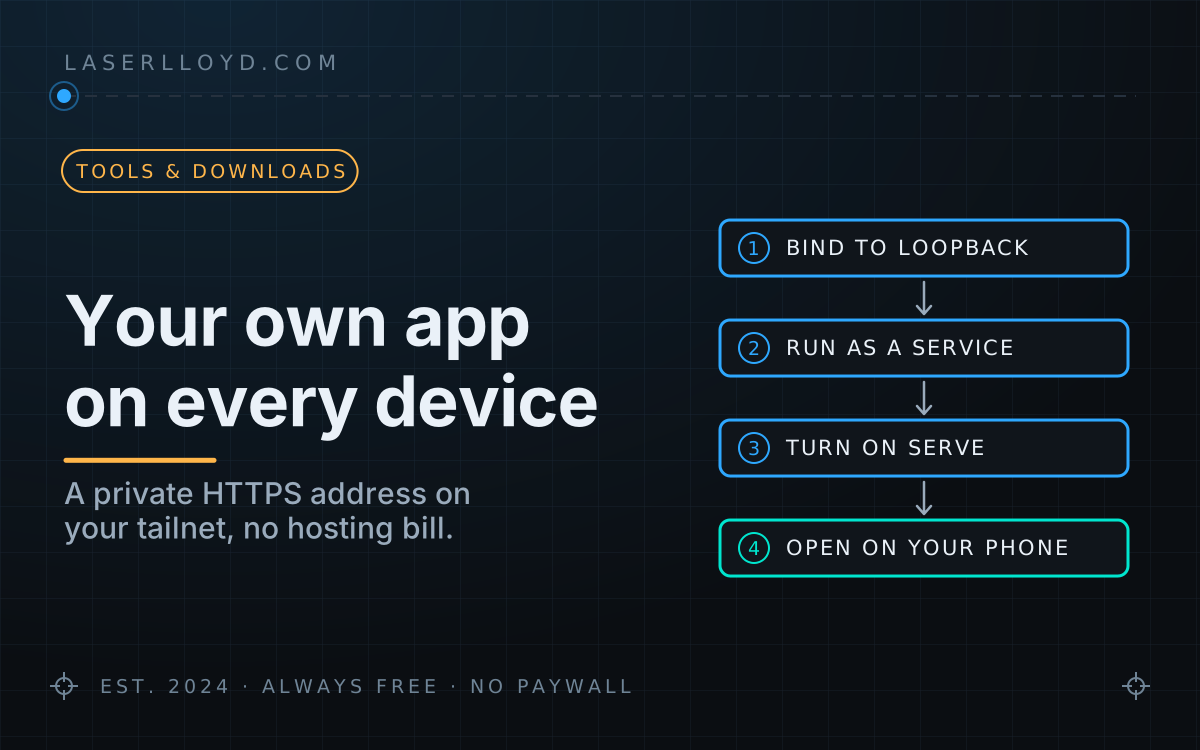
In plain terms: Tailscale is a free program that links your own phone, laptop and computers into a private network. Its Serve feature gives a program running on your computer a secure web address that only your devices can open, so a small app you run at home works on your phone anywhere, without opening your router or paying for hosting. This guide builds one, a shared checklist, and shows how to keep strangers out.
You have a small program on your computer, a list, a dashboard, a tool you wrote, and you want it on your phone. Not on the open internet, not on a rented server: just on your own devices, wherever you are. Tailscale Serve does exactly that. It gives the program a real HTTPS address that only devices on your private Tailscale network can open, and it tells your program who is asking. This guide builds a complete example, a shared checklist called Pocket List, runs it as a service, puts it on the tailnet with one command, makes it installable as a phone app, and locks it down so a request that did not come through Serve gets nothing. We tested every command on Linux with Tailscale 1.104.6 on 2026-11-18.
tl;dr
- What it is: your own web app at
https://my-pc.example-tailnet.ts.net:8443/, reachable only from your tailnet. - What it costs: nothing extra. Tailscale's Personal plan is $0 for up to 6 users with unlimited user devices (non-commercial use; pricing page checked 2026-11-18). The app runs on a computer you already own.
- What you need: a computer that stays on, Python 3.9 or newer, a Tailscale account, and your phone.
- The commands that matter: bind the app to
127.0.0.1, thentailscale serve --bg --https=8443 http://127.0.0.1:8460. - The download: Pocket List (standard-library Python, 25 tests, MIT-0), below.
What do you end up with?
A web app that lives on your computer and opens like any other site on your phone and laptop, with a padlock, a sign-in you never type (Tailscale already knows who you are), and an “install” option that puts it on the home screen.


The example is deliberately small: about 400 lines of Python using only the standard library, a plain HTML page, and the ThemeForge drop-in theme for the looks. The pattern is the point. Swap the checklist for anything you like.
How does Tailscale Serve work?
Tailscale builds a private network, a tailnet, out of your own devices. Each device runs the Tailscale client, and devices talk to each other over encrypted WireGuard tunnels, directly where they can. Your computer never opens a port to the internet.
Serve is a small reverse proxy built into the Tailscale client. You tell it “take HTTPS requests on port 8443 and pass them to my program on 127.0.0.1:8460”. It answers on your computer’s tailnet address only, with a real certificate, and forwards each request to your program.
Three Tailscale features make this work:
- MagicDNS gives every device a name like
my-pc.example-tailnet.ts.net(the form is<machine>.<tailnet-name>.ts.net). Tailscale says tailnets created on or after 20 October 2022 have it on by default. - HTTPS certificates. Once you enable them, Tailscale gets a Let’s Encrypt certificate for that name, so browsers show a normal padlock. Certificates are recorded in the public Certificate Transparency logs, so the machine name and your tailnet name become public; Tailscale’s own advice is not to enable HTTPS if a machine name contains anything sensitive. Rename the machine first if you need to.
- Identity headers. For every request from a signed-in tailnet user, Serve adds
Tailscale-User-Login(for examplealex@example.com),Tailscale-User-NameandTailscale-User-Profile-Pic. Serve removes any copies of these headers that arrive with the request, so a tailnet device cannot forge them. The headers are not added for traffic from tagged devices (servers that join the tailnet under a tag instead of a person’s account) or for Funnel traffic.
Serve or Funnel?
Tailscale has a sibling command, Funnel, that publishes the same kind of mapping to the whole internet through Tailscale’s relay servers. It is the right tool for a webhook or a page you want strangers to see. It is the wrong tool for anything private.
Do not use Funnel for a private app, even “just for a minute”: it is public the moment it is on, and an app that relies on identity headers has nothing to check, because Funnel requests carry none. Pocket List refuses every Funnel request for exactly that reason.
Step 1: Install Tailscale and switch on MagicDNS and HTTPS
- Install Tailscale on the computer that will run the app, and on your phone. On Linux the official one-liner is
curl -fsSL https://tailscale.com/install.sh | sh, thensudo tailscale upand sign in in the browser it opens. On macOS, Windows, Android and iPhone, install the app from tailscale.com/download and sign in with the same account. - Open the DNS page of the admin console. Check that MagicDNS is on; under HTTPS Certificates, choose Enable HTTPS and accept the note about the public certificate log.
- On Linux, make your own user the Tailscale “operator”, the account allowed to change Tailscale’s settings without
sudo(once):sudo tailscale set --operator=$USER. Forwarding to a port works for the operator user; serving files or folders still needs root, which we do not need here. - Find the login name Tailscale has for you. It goes on the app’s allow list:
tailscale whois $(tailscale ip -4)
The Name: line under User: is your login, for example alex@example.com.
Step 2: Write the app, and bind it to loopback
The one rule that makes everything else safe: the app listens on 127.0.0.1, never on 0.0.0.0 or a network address. 127.0.0.1 is the loopback address, the computer talking to itself; nothing outside the computer can connect to it. Then the only programs that can reach it are on the same computer, and the only one of those that talks to the network is Serve. In Python’s standard library that is one line:
httpd = ThreadingHTTPServer(("127.0.0.1", args.port), make_handler(store, identity))
Pocket List is a single file, app/server.py, plus a static folder: index.html, app.js, app.css, a web app manifest, a service worker, icons, and ThemeForge. The API is five routes: GET /api/me, GET /api/items, POST /api/items, PATCH/DELETE /api/items/<id>, and POST /api/clear-done. The list is one JSON file in ~/.local/share/pocket-list/.
Download it, unzip it, run the tests, and try it before Tailscale is involved at all. You need python3 --version to say 3.9 or newer; unzip and curl are on most systems already.
unzip pocket-list-2026-11.zip && cd pocket-list
python3 -m unittest discover -s tests          # Ran 25 tests ... OK
python3 app/server.py --dev --data ./test-list.json
Open http://127.0.0.1:8460/ on the same computer (add --port 8470 to the last line if 8460 is taken, and use that port instead). The footer reads “Dev mode: identity check is OFF”, and the list is saved to test-list.json in the folder. From a second terminal you can drive the API the way the page does. A change must say it comes from the app’s own page (the CSRF rule, explained in the security section), so send Sec-Fetch-Site: same-origin as a browser would:
curl -s http://127.0.0.1:8460/api/me
# {"login": "dev@localhost", "name": "Local test", "mode": "dev"}
curl -s -X POST -H 'Content-Type: application/json' -H 'Sec-Fetch-Site: same-origin' \
     -d '{"text":"Milk"}' http://127.0.0.1:8460/api/items
# {"id": "…", "text": "Milk", "done": false, "by": "dev@localhost", "at": …}
--dev exists only for this local try-out. It refuses any request that arrives with Tailscale’s identity header or a forwarded address, so a --dev server put behind Serve by mistake lets nobody in. Stop it with Ctrl+C.
The theme: ThemeForge, unchanged
The page looks finished in light and dark without any design work because it uses ThemeForge, our free drop-in theme folder. The download ships ThemeForge 2.0.1’s ui-theme/ folder copied unchanged from the release tag, as ThemeForge’s install guide says, and the page head follows its order: the runtime script first (blocking), then the base and component CSS, then the app’s own CSS, then the theme tokens. The theme picker is one <select data-ui-theme-picker>. ThemeForge is MIT-0, so there is nothing to credit, but the folder keeps its own README and licence file anyway. The ThemeForge article covers every token and component class.

Step 3: Run it as a user service that starts by itself
On Linux, a systemd user service runs the app as you, without root, and restarts it if it stops. The download’s install.sh copies the app to ~/.local/share/pocket-list/app, writes ~/.config/systemd/user/pocket-list.service with your allow list in it, and starts it:
./install.sh alex@example.com                # more logins: separate them with spaces
systemctl --user status pocket-list          # Active: active (running)
loginctl enable-linger "$USER"               # optional: start at boot, before you log in
The core of the unit it writes (abridged: the full file, systemd/pocket-list.service in the download, also has a description, a start-after-network line and a three-second restart delay):
[Service]
Environment=PATH=/usr/local/bin:/usr/bin:/bin
Environment=POCKETLIST_PORT=8460
Environment=POCKETLIST_ALLOW=alex@example.com
ExecStart=/usr/bin/env python3 %h/.local/share/pocket-list/app/server.py
Restart=on-failure
NoNewPrivileges=true
PrivateTmp=true

[Install]
WantedBy=default.target
Without enable-linger a user service starts when you log in and stops when you log out. With it, systemd starts it at boot. install.sh and uninstall.sh only touch your home folder.
The server refuses to start in normal mode without at least one login on the allow list (the logins allowed in). That is fail-closed by design: a forgotten setting means “nobody gets in”, not “everybody gets in”. It also refuses every request that did not come through Serve, page and icons included:
curl -s http://127.0.0.1:8460/api/items
# {"error": "no_tailscale_identity"}
To change the allow list later, run ./install.sh again with the full list of logins. It replaces the app and the unit and restarts the service; your list is kept. The unit sets PATH so the service can find the tailscale command for the whois check described below.
macOS and Windows (not tested by us): server.py runs the same way (python3 on macOS, py on Windows). Start it at login with a launchd agent on macOS or a Task Scheduler task set to “At log on” on Windows, running python3 <folder>/app/server.py --allow you@example.com. The tailscale serve commands below are the same on every platform.
Step 4: Put it on your tailnet with tailscale serve
First see what is already being served, so you pick a free port and do not touch an existing mapping:
tailscale serve status
It lists every mapping already on the machine; pick an HTTPS port that is not in that list. Then add the mapping. --bg makes it permanent: Tailscale’s documentation says a background Serve config keeps running until you turn it off and resumes after a reboot or a Tailscale restart.
tailscale serve --bg --https=8443 http://127.0.0.1:8460
tailscale serve status

We used port 8443 so the app gets its own address and leaves the default port 443 free for something else. If 443 is free on your machine you can use --https=443 and drop the :8443 from the address.
Step 5: Open it from your phone
Switch Tailscale on on the phone and open https://my-pc.example-tailnet.ts.net:8443/ with your machine and tailnet name. The page loads with a valid certificate, and the line under the title says who Tailscale says you are. Add an item on the phone, and it appears on the laptop the next time that page comes to the front.
In our test, headless Chrome loaded the page through the real tailnet address with a valid certificate, showed the signed-in login, added an item and removed it again, with no console errors and no Content-Security-Policy violations.
Step 6: Make it installable as an app
A web page becomes an installable app (a “PWA”, progressive web app) when the browser finds a web app manifest and, for an offline-capable app, a service worker. Installation needs HTTPS or localhost, and Serve gives you the HTTPS. Pocket List ships:
manifest.webmanifestwithname,short_name,start_url,display: standaloneand icons at 192 and 512 pixels (plus a maskable 512 icon). MDN lists those members, with icons at 192 and 512 pixels, as Chromium’s install requirements.sw.js, a 32-line service worker that stores the app shell (page, scripts, styles, icons) when it installs and keeps a copy of the other files it fetches, for offline starts. It never caches the list itself:/api/requests always go to the server. MDN notes that a service worker is no longer strictly required for installation, but it is what makes the installed app open without a network.- a
<link rel="manifest">tag pointing atmanifest.webmanifestin the page head andnavigator.serviceWorker.register('/sw.js')inapp.js. - Two directives in the Content-Security-Policy (next section):
manifest-src 'self', which says which manifest the page may use, andworker-src 'self', which says where service worker scripts may come from.manifest-srcfalls back todefault-src, so withdefault-src 'none'and nomanifest-srcthe browser blocks the manifest and never offers to install.worker-srcfalls back tochild-srcand thenscript-src; we set it anyway, so the service worker rule stays put ifscript-srcever changes.
To install on a phone, open the browser menu (Chrome on Android) or the Share sheet (Safari on iPhone) and choose the install or Add to Home Screen entry. On a desktop Chromium browser, Pocket List’s own Install app button shows up in the footer when the browser offers installation. We checked installability with Chrome DevTools’ Page.getInstallabilityErrors over the real Serve address: the list of errors was empty.
How do you keep a tailnet web app private?
The tailnet is a strong outer wall, but the app should still check every request itself. Pocket List does six things, and each one is a few lines you can copy.
1. Loopback only. Covered in step 2. It is what makes the identity header trustworthy: Tailscale’s own advice is to have the service listen only on localhost, because a header is only as good as the guarantee that Serve put it there.
2. Identity that fails closed. No Tailscale-User-Login header means the request did not come through Serve from a signed-in person. It came from a program on the same computer, from a tagged device, or from Funnel, so it is refused with 401. A login that is not on the allow list gets 403.
login = (headers.get("Tailscale-User-Login") or "").strip().lower()
if not login:
    raise AuthError(HTTPStatus.UNAUTHORIZED, "no_tailscale_identity")
if login not in self.allow:
    raise AuthError(HTTPStatus.FORBIDDEN, "not_on_allow_list")
3. A second opinion from tailscale whois. Serve also passes the caller’s tailnet address in X-Forwarded-For. Pocket List asks the local Tailscale client who owns that address (tailscale whois --json <address>) and requires the same login the header named. A missing address, a failed lookup or a different owner is a refusal. This catches mistakes, like a second proxy in front of the app adding its own headers. It cannot stop a program already running on your computer that forges both headers, because nothing at the HTTP level can; keep untrusted software off the machine that runs your apps. --no-whois turns the check off if the tailscale command is not available to the service.
4. CSRF protection on every change. CSRF (cross-site request forgery) is when a page on another site makes your browser send requests to your app, with your access. Browsers mark every request with Sec-Fetch-Site; Pocket List accepts a POST, PATCH or DELETE only when it says same-origin, falls back to comparing Origin with Host for older browsers, and refuses a request that has neither. It also accepts only application/json bodies, which a plain HTML form cannot send.
5. A strict Content-Security-Policy. The CSP is a response header that tells the browser what the page may load and run. Every response carries:
default-src 'none'; script-src 'self'; style-src 'self'; img-src 'self';
connect-src 'self'; manifest-src 'self'; worker-src 'self';
base-uri 'none'; form-action 'self'; frame-ancestors 'none'
No inline scripts, no inline styles, nothing from another site, no framing. Item text goes into the page with textContent, never as HTML.
6. No secrets in the page. There is no API key or password in the HTML or the JavaScript, because there is nothing to type: the sign-in is the tailnet itself.
This is what the refusals look like from a terminal on the same computer:

The outer wall: who is in your tailnet
- Device approval. Tailscale can make a new device wait until an admin approves it before it joins (all plans). Switch it on if anyone besides you can sign in to your tailnet’s identity provider.
- Access controls. The tailnet policy file decides which users and devices may reach which machines and ports. If you add other people as users, check what it lets them reach, and limit them to the app’s port if that is all they need.
- Sharing with a family member. The simplest way is node sharing: from the Machines page, share the PC with their email address. Tailscale says sharing gives the recipient access to only the shared machine, and nothing else in your tailnet. They reach every port Serve answers on that machine, so every app you serve there should check identity the way Pocket List does. Their requests carry their own login in the identity headers; add it to the allow list (
./install.sh you@example.com them@example.comagain). The alternative is to invite them as a user of your tailnet; the Personal plan counts up to 6 users.
A real example: MailForge on the tailnet
MailForge, our self-hosted email assistant (source on GitHub), is served to our own devices exactly this way. Its web interface binds 127.0.0.1 on a fixed port set with MAILFORGE_UI_PORT; one tailscale serve --bg --https=<port> http://127.0.0.1:<port> mapping, marked “tailnet only”, publishes it; and MAILFORGE_UI_ALLOWED_HOSTS lists the tailnet name so MailForge’s Host and Origin check accepts requests that arrive under it. It keeps its own sign-in on top (a one-shot login link that becomes a signed session cookie), so tailnet membership alone is not enough to read mail. It uses ThemeForge too, which is why it shares Pocket List’s look.


If you want to try MailForge without a mailbox, its mailforge demo command starts a throwaway copy with invented mail; that is how these screenshots were made.
How do you stop or remove it?
tailscale serve --https=8443 off           # remove the mapping (the exact line Serve printed)
systemctl --user stop pocket-list          # stop the app for now
./uninstall.sh                             # remove the app and its unit, keep the list
./uninstall.sh --purge                     # remove the list too
tailscale serve status                     # check the mapping is gone
tailscale serve reset removes every Serve mapping on the machine at once; use it only if this app is the only thing you serve. We ran the first four lines at the end of our test: tailscale serve status came back identical to its state before the test, and the unit file and app folder were gone.
Troubleshooting
| What you see | Likely cause | Fix |
|---|---|---|
| Browser warns about the certificate, or the first load hangs | HTTPS certificates are not enabled for the tailnet, or you enabled them moments ago | Enable HTTPS on the admin console’s DNS page; give it a minute and reload |
my-pc.example-tailnet.ts.net does not resolve |
MagicDNS is off, or the phone’s Tailscale is switched off | Turn MagicDNS on in the admin console; switch Tailscale on on the phone |
| 502 or “connection refused” through Serve | The app is not running, or Serve points at the wrong port | systemctl --user status pocket-list; compare the port in tailscale serve status with POCKETLIST_PORT |
| Your own app is reachable on your home network without Tailscale | It is bound to 0.0.0.0 |
Bind 127.0.0.1 only, as Pocket List does |
| The app is gone after a reboot | Serve was started without --bg, or the service is not enabled |
Re-run tailscale serve --bg …; systemctl --user enable --now pocket-list; loginctl enable-linger "$USER" to start before login |
{"error": "no_tailscale_identity"} |
The request did not come through Serve: a direct 127.0.0.1 request, a tagged device, or Funnel |
Open the https://…ts.net address from a device signed in as a person |
{"error": "not_on_allow_list"} |
Your login differs from the one in POCKETLIST_ALLOW |
Read your login with tailscale whois $(tailscale ip -4) and reinstall with it |
{"error": "whois_failed"}, or the service will not start (“‘tailscale’ is not on PATH”) |
The service cannot run the tailscale command |
Check where it lives with command -v tailscale and add that folder to the unit’s PATH line; or run with --no-whois |
{"error": "no_forwarded_address"} or whois_mismatch |
The request reached the app through something other than Serve, or a second proxy changed the headers | Point Serve straight at http://127.0.0.1:8460, with nothing in between |
{"error": "dev_mode_is_local_only"} |
A --dev server is behind Serve |
Run the installed service instead; --dev is for this computer only |
| The phone cannot open the address at all | The phone is not on the tailnet, or a policy file rule blocks it | Check the phone is listed as connected on the Machines page; check your access rules |
| No “Install” option | Opened over plain http://, or the manifest or service worker was blocked |
Use the HTTPS Serve address; keep manifest-src 'self' and worker-src 'self' in the CSP; check DevTools → Application → Manifest |
| You opened a firewall port and it still does not work | Not needed: Serve answers on the tailnet interface and talks to the app on loopback | Close the port again; there is nothing to open |
Versions we tested
Tested on 2026-11-18: Tailscale 1.104.6 on Linux (Fedora-based, systemd user service), Python 3.14.10, headless Chrome for Testing 151.0.7922.34, ThemeForge 2.0.1. Pocket List’s tests also pass on Python 3.9, 3.10 and 3.11. MailForge screenshots come from a development build (0.8.0.dev1) in demo mode.
References
All checked on 2026-11-18.
- Tailscale, Tailscale Serve (identity headers, header stripping, listen on localhost)
- Tailscale, tailscale serve command (
--bg,--https,off,status,reset) - Tailscale, Tailscale Funnel (public internet, ports 443, 8443, 10000)
- Tailscale, Enabling HTTPS (Let’s Encrypt, Certificate Transparency warning)
- Tailscale, MagicDNS
- Tailscale, CLI reference (
whois,--operator) - Tailscale, Sharing your machines, Access control and Device approval
- Tailscale, Install on Linux and Pricing
- MDN, Making PWAs installable, Web app manifest, Service Worker API, CSP manifest-src, CSP worker-src
Where this leaves us
One loopback port, one tailscale serve --bg line and an identity check that says no by default: that is the whole recipe, and it costs nothing beyond the computer you already have. Everything we self-host for our own devices now follows it.
Related: MailForge, a local-LLM email assistant that never sends · ThemeForge, the drop-in theme Pocket List uses · Run DisPatch and our AI tools in Docker · DisPatch, a self-hosted chat app · Why every Laser Lloyd project uses MIT-0
Downloads
Free for personal use. If it saves you an afternoon, the coffee button's nearby.