DisPatch: A Private AI Chat App for the Whole Household
- Category
- AI & Local LLM
- Posted
- November 28, 2026
- By
- Jacob Lloyd — written with AI assistance, post-project
- Read time
- 17 min read
In plain terms: DisPatch is a chat app that runs on a computer in your home. Everyone in the house opens it on a phone or laptop and talks to AI assistants through it. Each person gets a private profile, and children get a simple profile with only the friendly characters a parent picks. You connect it to an AI service or to a model on your own hardware. DisPatch sends nothing to its makers. Your chats go only to the AI services you connect, and a bot's web, weather and Wikipedia lookups go to those services.
DisPatch is the chat app our household uses every day. DisPatch runs on one computer at home, and every phone, tablet and laptop in the house opens it in a browser. Each person has a private profile. The bots behind it can be an AI service you pay for, a model on your own hardware, or an agent that works on the host computer. The short film above shows the app in use.
This page is the overview. It starts with what DisPatch does without any add-ons, then covers the add-ons and what each one needs, then the install and the first setup, step by step. Every screenshot comes from a fresh test install with an invented family (Maya, Sam and Leo), invented chats and a stand-in model. None of it is our own data.
TL;DR
- What it is: a private chat app for a household. DisPatch runs on your own computer and works in any browser, on desktop and on phones.
- Built in: private profiles for every person, simple profiles for children, bots with personalities, pictures in chat, a File Server, search, encrypted backups, and thirteen themes.
- Add-ons: voice chat, agent backends such as OpenClaw, apps, and your own image server. Each add-on is optional.
- Install: six commands with uv, or Docker Compose. A six-step wizard does the rest. We tested the uv route on 28 November 2026.
- Privacy: no telemetry. Chats go to the AI services you connect. A bot's live lookups call the lookup's own service, such as DuckDuckGo or Wikipedia.
- Licence: MIT-0. DisPatch is free.
Built-in features
Everything in this section works on a fresh install with one AI connection. Nothing here needs an add-on.
A profile for every person
Every person in the house gets a profile, with an optional PIN or password. There are three kinds of profile:
- Admin. An Admin runs the household: people, bots, connections and backups. The first Admin is the Owner. Only the Owner can switch on things that run code or read files on the host computer.
- User. A User chats, makes their own bots, and uses the household bots an Admin allows.
- Basic. A Basic profile sees only the household bots an Admin picks for it. A Basic profile cannot change any settings. This is the profile we give to children.
There is also a shared profile called DisPatch with no PIN. A device that nobody has signed in on opens as DisPatch, so a shared tablet still works.
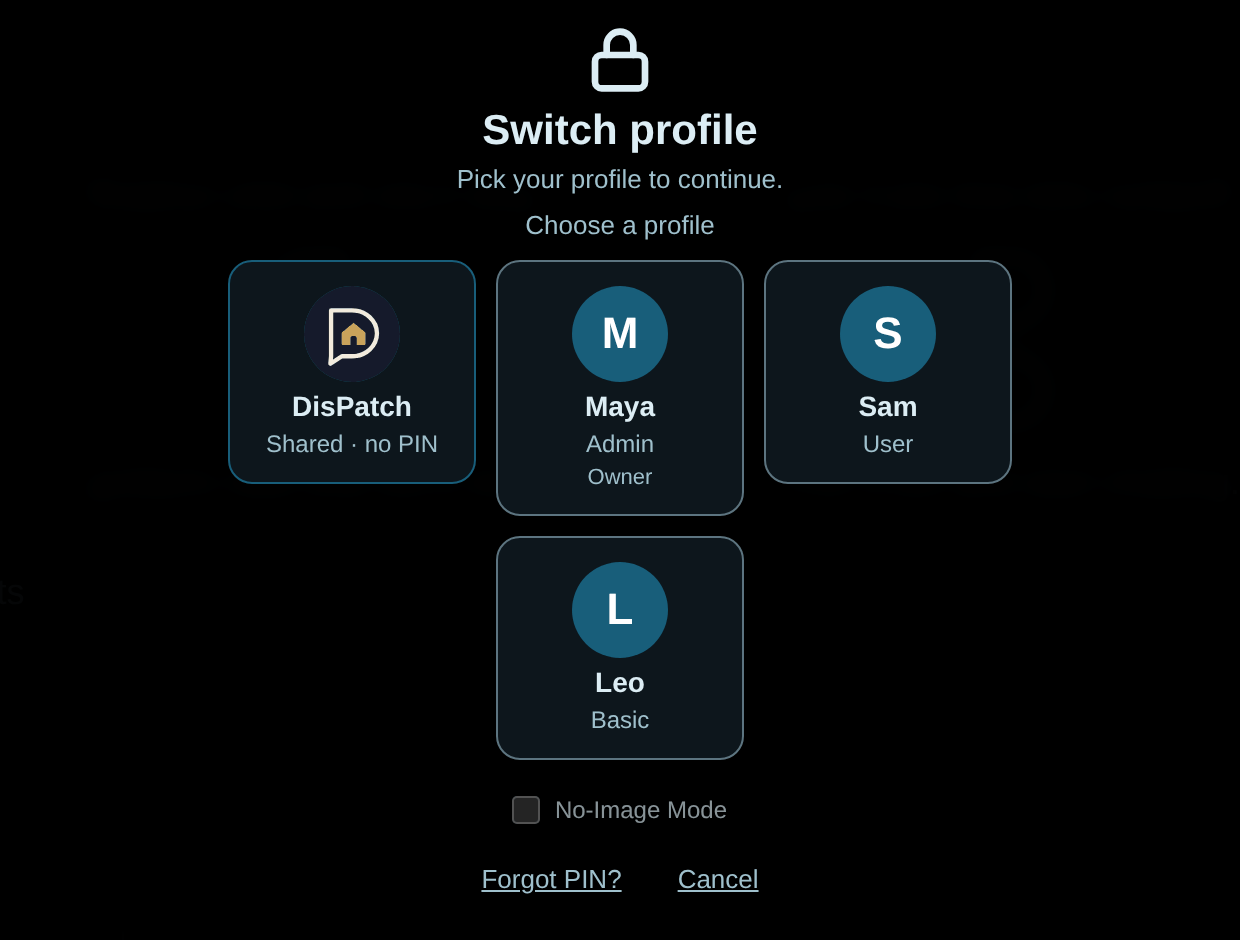
Chats are private to the profile that wrote them. An Admin cannot open another person's chats. We checked this on the test install: Sam wrote a chat, and Maya, the Owner, got "Thread not found" when she asked the server for it. The limit is in the server, not only in the screen. An Admin still has the host computer and its backups, so a profile is privacy inside the app, not a wall against the person who runs the machine. The Security section below says more.

Each profile also has a list of switches for what it may do. An Admin can turn off picture making for one person, or turn on file uploads for another. The switch for agent bots carries a warning, because an agent bot can run commands on the DisPatch computer.

Bots and characters
A bot is a name, a picture, a personality and a model. Every new profile gets its own copy of Atlas, a general assistant. Atlas answers as soon as one AI connection exists. Replies stream in as the model writes them, with formatting, lists and code blocks.

Bots also have live lookups: web and news search, a page fetch, weather, Wikipedia, exchange rates, the time and a calculator. A bot uses a lookup when a question needs one.
Anyone with a User or Admin profile can make a bot. The form asks for a name and a picture, and offers a list of ready-made personalities, such as a patient tutor, a warm friend, a blunt critic or a storyteller. The personality text stays editable. {name} and {user} in the text are filled in on each reply.

Admins also keep household bots. A household bot is a template. Each profile it is given to gets its own copy, with its own chats. DisPatch ships two ready-made packs. Animal Friends is eight gentle bots for small children, such as Lulu the Lobster and Oscar the Owl. Assistants is four bots for adults: Sage, Scribe, Dev and Planner. An Admin picks the bots from a pack and chooses who gets each one.

Children's profiles
A child's profile is a Basic profile with the household bots an Admin ticks for it. Leo's profile below has Atlas, Lulu, Oscar and Pip, and nothing else. The Animal Friends answer in short, simple sentences. Leo cannot open Settings to change a bot or a connection.

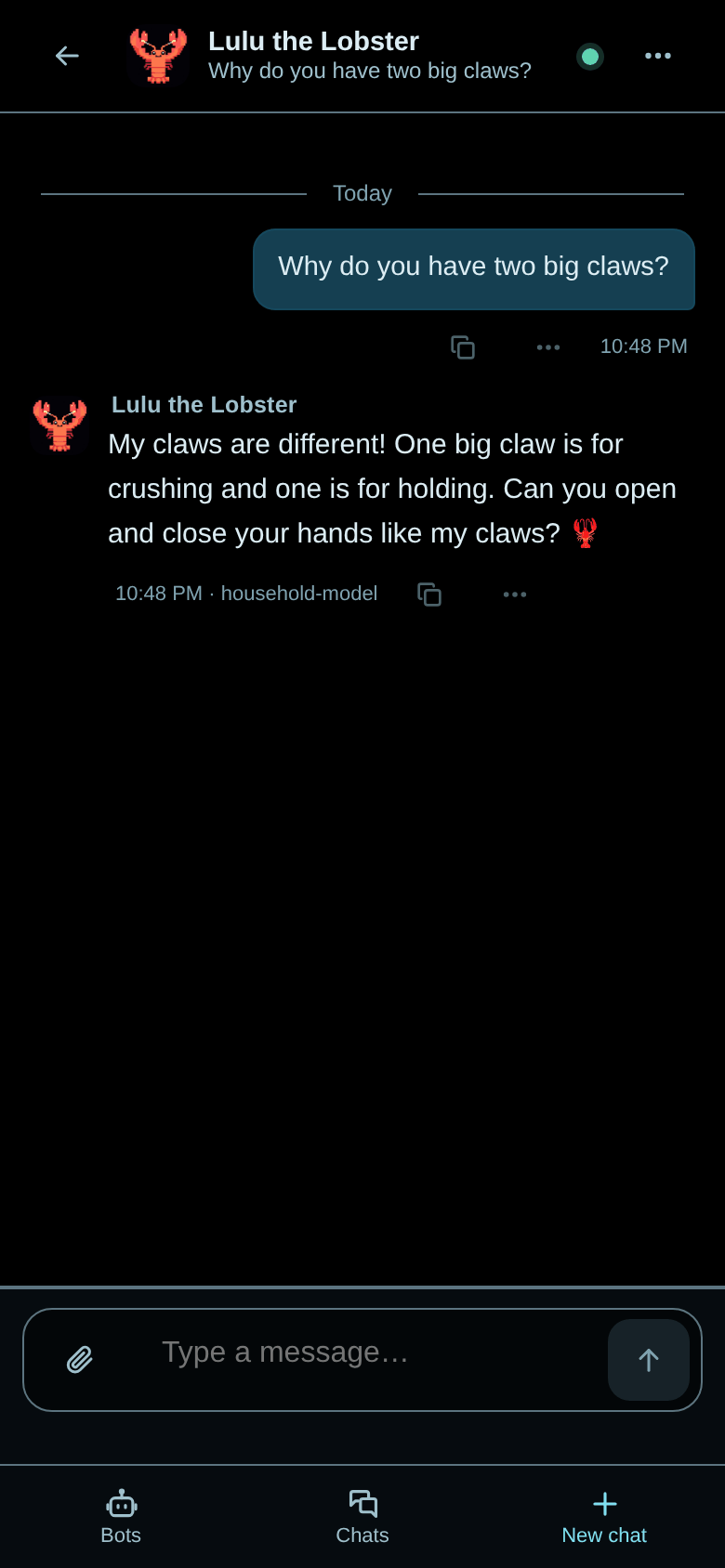
DisPatch 4.x has no daily time limits or quiet hours. The DisPatch 3.0 article describes those, and they were removed in 4.0. If a child should only use the app at certain times, the device's own parental controls are the place for that.
Pictures
Bots can draw. Ask for a picture in a chat and the picture arrives in the reply. DisPatch makes pictures through an image provider: MiniMax, OpenAI, xAI Grok, any OpenAI-compatible images endpoint, or your own image server. Without a provider, everything else still works.

Image Studio is an app in the rail for making pictures on purpose. Type a prompt, pick the provider, the model, the shape and the number of pictures, and press Generate. Results stay in a grid with download, copy and delete buttons.

Files, search and tools
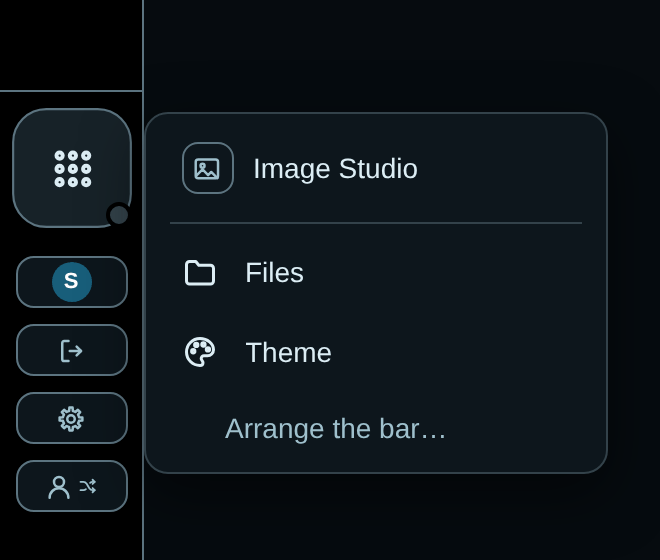
The Tools button in the rail opens Image Studio, the File Server and the theme picker. Add-on apps appear in the same menu.
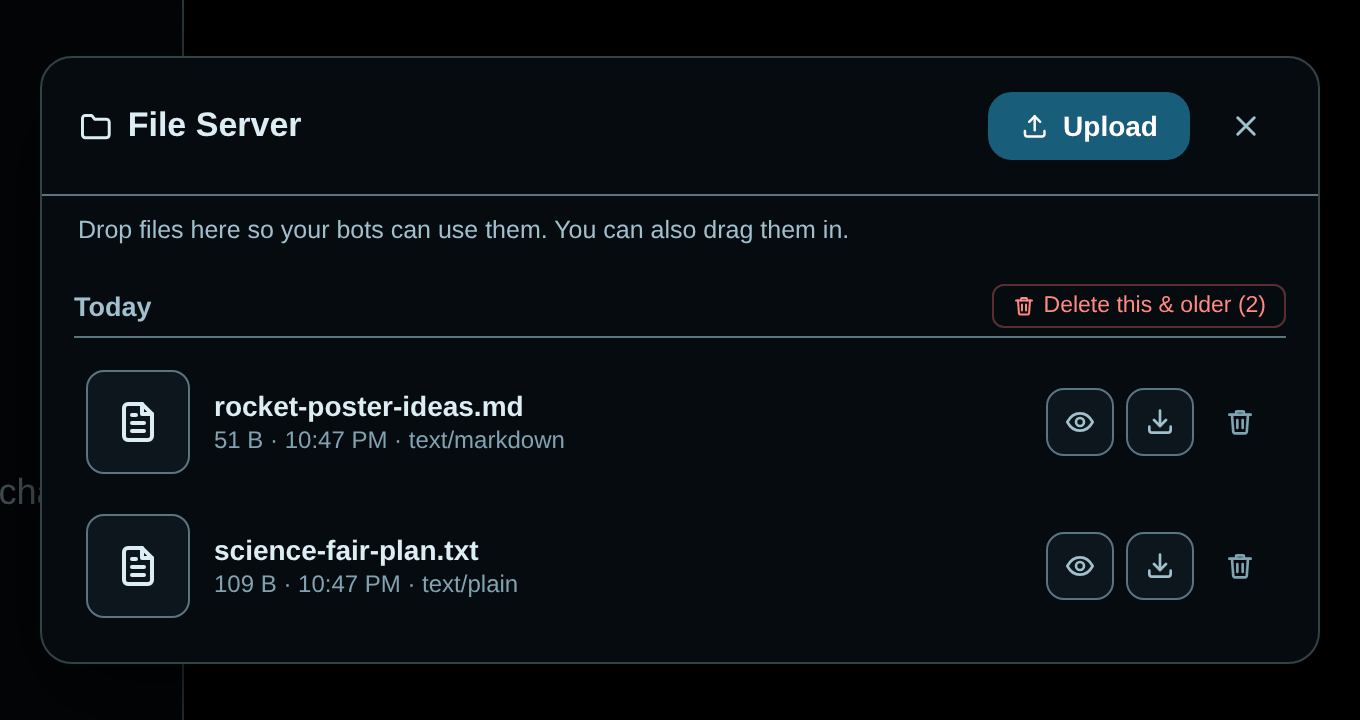
The File Server is a drop box on the DisPatch computer. Drag a file onto it from any device, and the file is on the server, grouped by day, for bots to use. A User lists and downloads only their own uploads. A Basic profile can upload files but cannot list them. The File Server shows the files uploaded to it, not the rest of the host's disk.
Search covers every chat in your own profile. Matches show the bot, the chat and the matching words.

On desktop, quick actions sit under the lightning button next to the message box: summarise, translate, fix grammar and other ready-made prompts for any bot.
Connecting an AI
A connection is one record per AI service or model server. The key is stored once, on the DisPatch computer, and the screen never shows it again. DisPatch knows these connection types: OpenAI-compatible, StudioForge, LM Studio, Ollama, OpenAI, Anthropic, DeepSeek, xAI, MiniMax, OpenRouter, Groq, Mistral and Together. Find servers looks for StudioForge, LM Studio and Ollama on this computer, and on the home network if you tick the box. Each connection has a Test button. Each bot then picks a connection and a model.

Backups
Back up now writes an encrypted backup file (.dpbk) of chats, bots, settings and, if you tick the box, pictures and files. Scheduled backups are a switch in Settings → System. Each backup has a Verify button, and a restore checks the file before it replaces anything. DisPatch also keeps automatic copies of the database, and a copy before every upgrade. A support bundle for bug reports removes keys, PINs and passwords.

The backup passphrase, or the recovery key DisPatch makes for you, is the only way to open an encrypted backup. Keep it somewhere off the machine.
Phones, themes and languages
DisPatch works in a phone browser, and a phone can add it to the home screen as an app (in the browser menu: Add to Home Screen or Install app). Push notifications work once the app is on the home screen, the device is remembered, and the address is HTTPS. There are thirteen themes and eight app languages: English, Arabic, Chinese, French, German, Japanese, Portuguese and Spanish.

Messages from scripts
A script on the host can post a message into a chat over HTTP. A backup job or a home-automation hook can report this way. The script sends the machine API key, which an Admin finds in Settings → People & Access, or with uv run python -m app token show in the backend folder on the host. On our test install, a post without the key was refused, and a post with the key landed in Atlas's chat for the day:
curl -X POST http://127.0.0.1:8765/api/inject \
  -H "X-API-Key: $DISPATCH_KEY" \
  -H 'Content-Type: application/json' \
  -d '{"bot_id": "<bot id>", "content": "The dishwasher finished.", "notify": true}'
"notify": true also pings every device that turned notifications on. The bot ids come from GET /api/bots with the same key.
Add-in features
Each item below is optional. DisPatch runs without any of them.
Voice chat
The DisPatch Voice add-on adds a microphone button to each chat and a call screen. You talk, the bot answers in its own voice, and you can type a turn instead while the reply is still spoken. Cloned voices belong to the profile that made them.
What voice needs: the add-on package installed into DisPatch's own environment, the system programs ffmpeg and libopus, and about 1.4 GB of speech models that Settings → Voice downloads with one button. On Docker, VOICE=1 in .env builds an image of about 1.7 GB with all of it inside. A GPU machine for the speech work is optional. On a native install, these lines from the README install the add-on (run the last line from the DisPatch folder, and repeat it after any uv sync):
sudo apt-get install -y ffmpeg libopus0
git clone https://github.com/LaserLloyd/DisPatch_Voice.git ~/DisPatch_Voice
cd backend && uv pip install --python .venv/bin/python ~/DisPatch_Voice
Then restart DisPatch and open Settings → Voice. The add-on is MIT-0. Its optional Kokoro voices are a separate plugin under the GPL.
Agent bots
An agent bot works on the host computer: it can read files, run tools and take on long jobs. Agent bots can also run on a schedule. DisPatch supports these agent backends:
- OpenClaw. Needs OpenClaw installed on the same computer, with the
openclawcommand on the PATH or its gateway running. - Claude Agent. Needs an Anthropic API key.
- Command-line programs. Needs the program on the host. Only the Owner can set one up.
- Claude Managed Agents. Off by default. The README says this backend has not been verified against the live service yet.
Agent bots run with your user's rights on the host. That is why using them is a separate permission. Admins always have it. For a User or a Basic profile it is off until an Admin turns it on. Agent actions can also wait for an approval. An agent bot can read every profile's chats, so the privacy of chats between profiles does not hold against an agent bot. In Docker, agent bots cannot see the host, so use a native install for them.
Apps
An app is a folder with its own page, routes and, if it wants, its own bot. Settings → Plugins & Apps lists what is installed and what each app asks to be allowed to do. Two apps ship in the repo:
- Image Studio, shown above. Needs an image provider, and the profile needs the picture-making permission.
- Job Board, a board for job listings that an agent collects. Needs OpenClaw and its job-search agent. Admins only.
An app you add yourself goes in the data folder and must be marked trusted in the settings file before DisPatch loads it. A package can also add new lookups for the bots, or a tab of its own in Settings.
Your own servers
- A model server on your own hardware. StudioForge, LM Studio, Ollama or any OpenAI-compatible server. Needs the server running and reachable. The wizard finds the first three on the same computer.
- Your own image server. An MCP image server, such as one in front of ComfyUI. Needs a GPU machine and its address in
DISPATCH_IMAGE_SERVER_URL. - MailForge. An Emails tab for a local email assistant that never sends on its own. Needs MailForge running beside DisPatch.
- Offline Wikipedia. Cited answers from a local copy of Wikipedia through InfoForge. Needs InfoForge and its Wikipedia server. The online Wikipedia lookup works without it.
Installation and first setup
We tested the steps below on 2026-11-28, on Linux, in an empty folder, with the code on the main branch of the public repo. That code reports version 4.3.0. We started the server, checked the health address, and walked the whole wizard in a browser.
What you need
- A computer that stays on: Linux, a Raspberry Pi 4 or 5, a Mac, or a Windows PC with Docker Desktop. The repo's docs have a page for each.
- Git, and either uv or Docker.
- An AI to connect: an API key, or a model server on your own hardware.
Install with uv (the route we tested)
These six lines install uv, fetch DisPatch and start it. Skip the first two lines if uv is already installed. The second line puts uv on the PATH of the shell you are in.
curl -LsSf https://astral.sh/uv/install.sh | sh
source "$HOME/.local/bin/env"
git clone https://github.com/LaserLloyd/DisPatch_Chat.git
cd DisPatch_Chat/backend
uv sync
uv run uvicorn app.main:app --port 8765
uv sync downloads a supported Python if your system does not have one. In a second terminal, check that the server answers:
curl -s http://localhost:8765/api/healthThen open http://localhost:8765 in a browser on the same computer. The server listens only on this computer until you add --host 0.0.0.0. Your data lives in ~/.local/share/local-chat. To keep DisPatch running after the terminal closes, the README's third method adds a systemd user service.
Install with Docker Compose
Docker Compose is the README's first method on Windows and Linux. We did not run this route for this article. The README's Linux steps are:
git clone https://github.com/LaserLloyd/DisPatch_Chat.git
cd DisPatch_Chat
sudo docker compose up -d
sudo docker compose logs app | grep "SETUP TOKEN"
The first start builds the image from the checkout. The image is about 840 MB. The compose file publishes port 8765 on every network interface. To keep DisPatch on this computer only, put BIND_ADDR=127.0.0.1 in .env before the first up. Your data lives in the dispatch-data volume, and docker compose down -v deletes it.
The setup token
A new install refuses every other device until the first Admin exists. If you open the wizard on the same computer as the server, it needs no token. If you open it from another device, the wizard asks for the SETUP TOKEN that the server prints in its log.
The first-run wizard
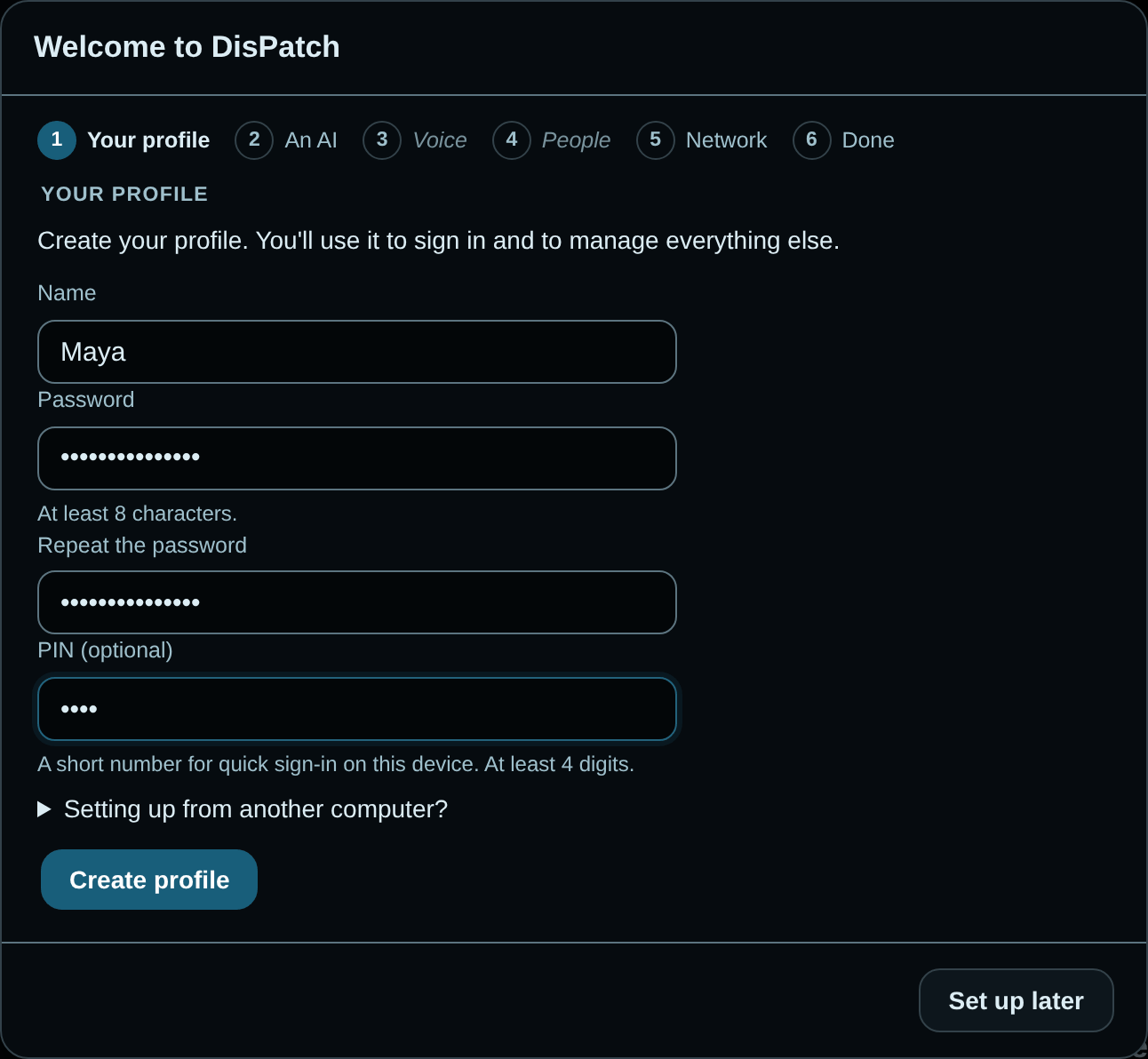
The wizard has six steps. The steps after the first can be skipped and done later in Settings.
1. Your profile. Enter a name and a password of at least 8 characters. A PIN of at least 4 digits is optional, for quick sign-in. This profile is the Owner.
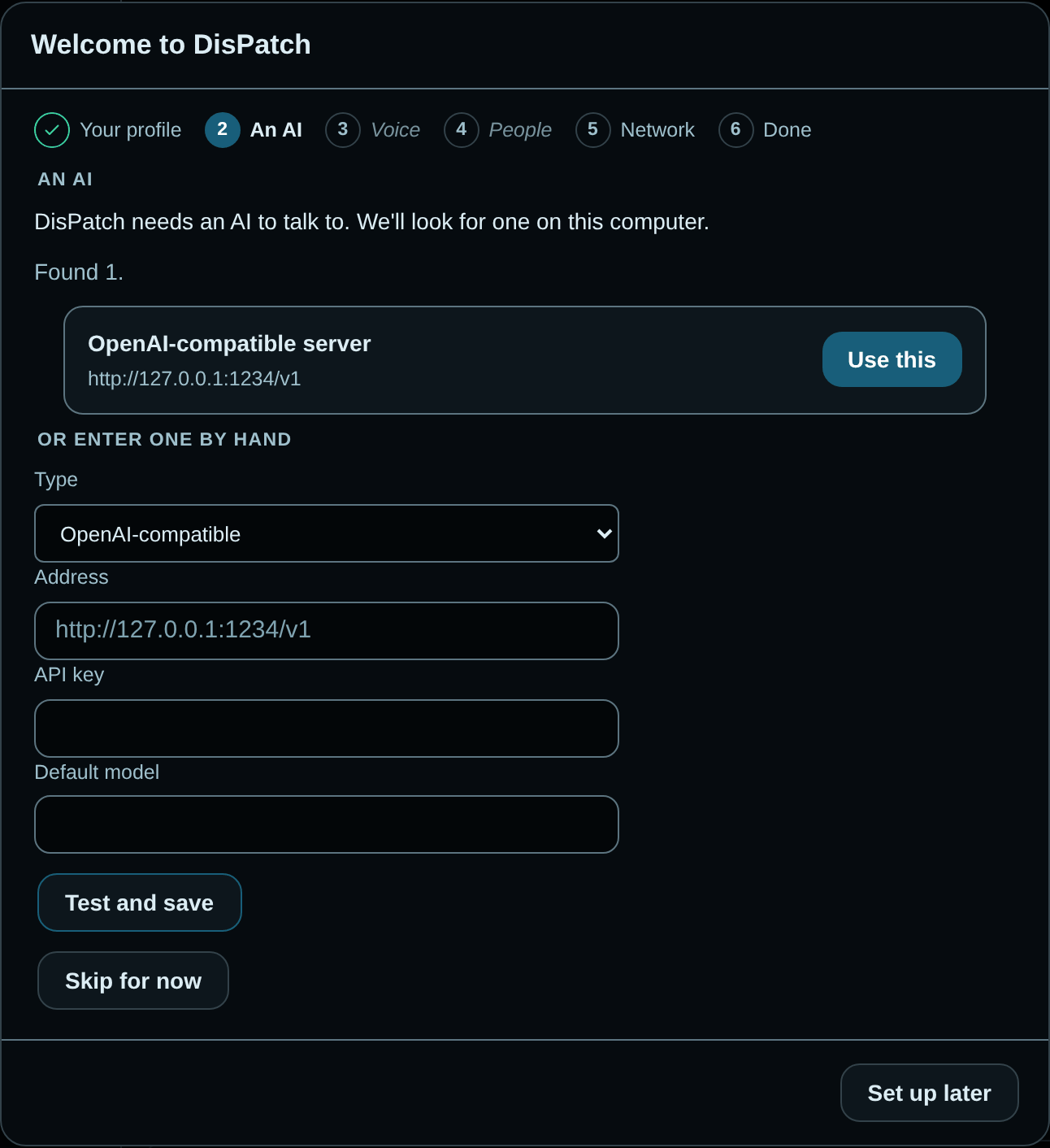
2. An AI. The wizard looks for a model server on this computer. Press Use this on a found server, or enter one by hand: the type, the address, an API key and a default model. Test and save checks it. Atlas then uses this connection.
3. Voice. Skip this step unless the voice add-on is installed.
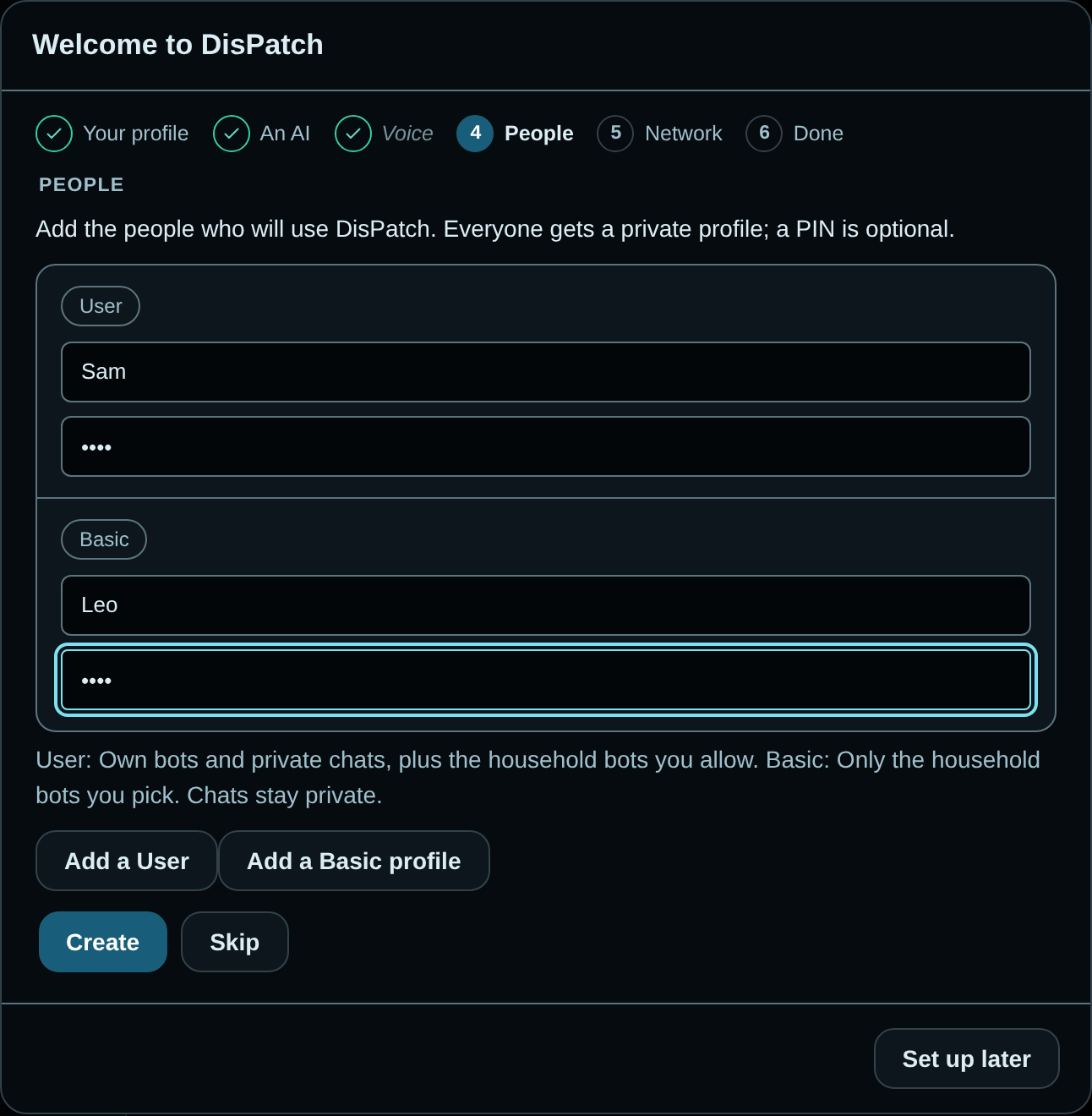
4. People. Add a User or a Basic profile for each person, with an optional PIN. Everyone gets a private profile.
5. Network. Choose This computer only (the safe default) or Other devices on my home network, and optionally the address other devices will use. An https:// address means the connections are encrypted.
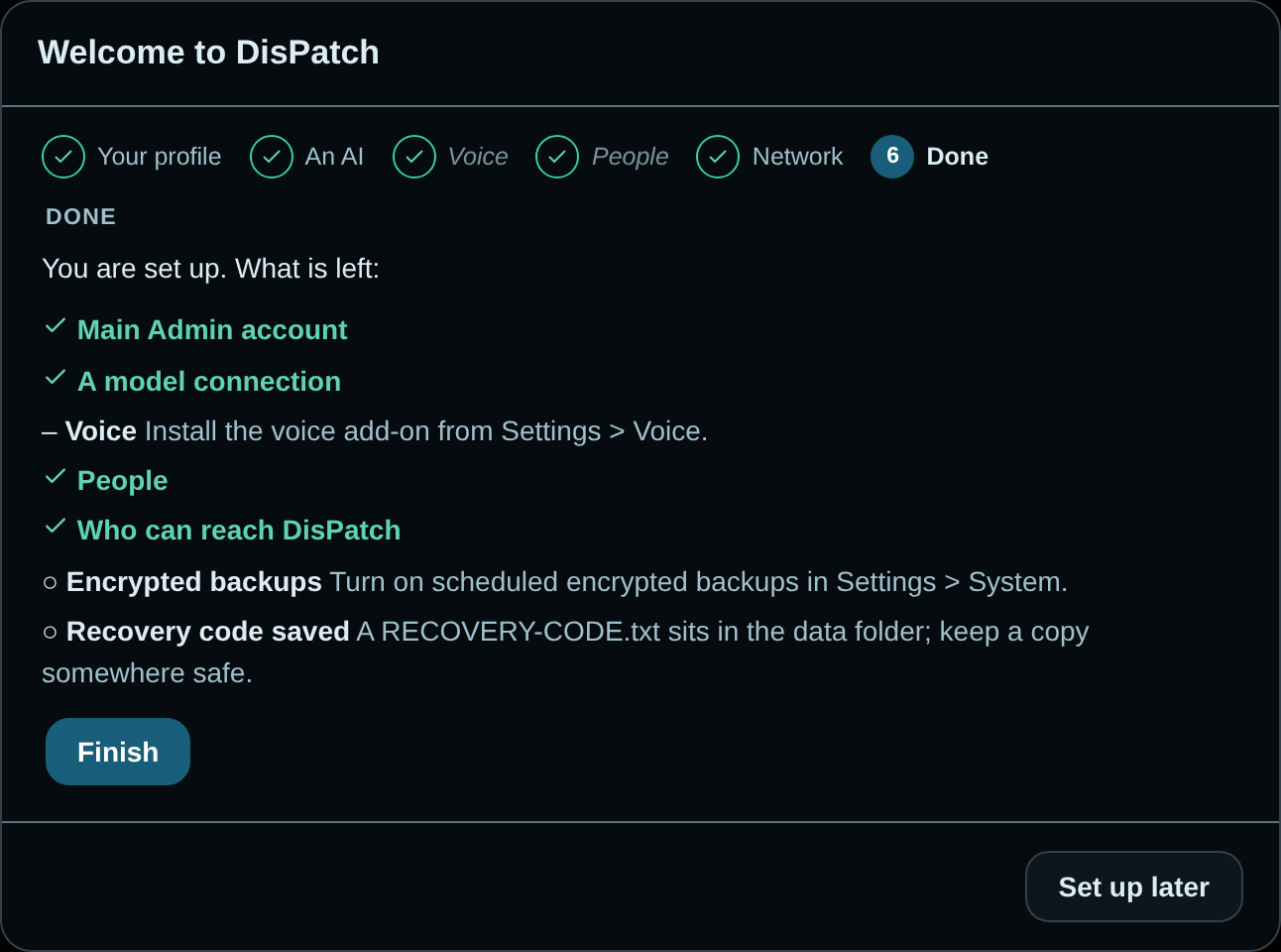
6. Done. A checklist shows what is set up and what is left: encrypted backups, and the recovery code. DisPatch writes the recovery code to a file in the data folder. Keep a copy of it somewhere safe.
The recovery code is for a forgotten PIN. On the lock screen, the recovery code removes the PIN. If you type a new PIN together with the recovery code, the new PIN replaces the old PIN. Sometimes DisPatch does not remove the PIN and asks for a new PIN. The main case: other people have profiles and the Owner has no password. The code does nothing for a lost password, and an Admin with a password can always sign in with the password. If the Owner's password and PIN are both lost, the fix needs the host computer. In the backend folder, run uv run python -m app admin reset. The command clears the Owner's sign-in and prints a new setup token, and the wizard then sets a new password for the same Owner profile. Without a terminal, an empty file named RESET_LOGIN in the data folder does the same on the next start. The repo's docs/accounts.md has the details.
After setup
- Add household bots. Settings → Characters → Household → Add a ready-made pack, then tick who gets each bot.
- Turn on scheduled backups in Settings → System.
- Reach DisPatch from phones. On the home network, start the server with
--host 0.0.0.0(or use the Docker default). For push notifications and access from outside the house, DisPatch needs an HTTPS address. The repo'sdocs/remote-access.mdcovers a reverse proxy with a real certificate, a small relay server for homes behind carrier NAT, and staying on the home network only. Do not open port 8765 to the internet directly. - Upgrade with
git pull, thenuv syncand a restart. DisPatch copies the databases before a new version first starts.
Other notes
Security
- The host computer is the trust boundary. Anyone with a shell or read access to the data folder can read everything. The database is not encrypted at rest, so use full-disk encryption if you need that.
- Messages are not end-to-end encrypted. The server stores the history and hands text to the AI. HTTPS protects the connection, not the stored data.
- The server checks every request against the profile's permissions, not only the screen. Sign-in uses strict cookies and checks where each request comes from. A new install stays closed to the network until the first Admin exists.
- Privacy mode lets a device keep nothing: no offline cache, no saved settings, no lasting session.
Privacy
DisPatch has no telemetry. We checked the public code for this article: there are no analytics or tracking calls, and the web pages load nothing from other sites. One package with telemetry in its name, opentelemetry-api, comes in as a dependency of the MCP library. That package is only an interface, and DisPatch sets up no exporter for it, so it sends nothing. DisPatch sends nothing to its makers. Your chats go to the AI connections and agent backends you set up. When a bot uses a live lookup, the request goes to that lookup's service: DuckDuckGo for web and news search, Wikipedia, Open-Meteo for weather, Frankfurter for exchange rates, and the page itself for a page fetch. Lookups are switched on or off for each bot, in the settings of that bot. Chats, bots, settings and files live in one data folder on your computer. API keys go to the operating system's keyring when one is available, and otherwise to an owner-only file in that folder.
Licence
DisPatch is MIT-0 (MIT No Attribution). You can run it, change it, share it and sell it, with no notice to keep. The voice add-on is MIT-0 too, and its optional Kokoro voices are GPL. The libraries bundled in the web front end keep their own licences, listed in the repo.
What is planned
The README's roadmap names one item that is designed and not built yet: a second sign-in factor with one-time codes (TOTP) and passkeys. Passwords, PINs and recovery codes are what DisPatch has now, as of 2026-11-28. The Claude Managed Agents backend also still needs a test against the live service.
Known limits
- Push notifications generally do not work on an install that is reachable only on the home network without HTTPS.
- In Docker, agent bots and the features that control the host cannot see the host.
- Native Windows is experimental. Use Docker Desktop on Windows.
- There is no tagged release for the newest work on
main. The last tag is version 4.3.0. Install frommain.
Where to report problems
Open an issue on the DisPatch issue tracker. Settings → System → Download support bundle makes a zip file to attach, with keys, PINs and passwords removed. For a security problem, do not open a public issue: use Report a vulnerability under the repo's Security tab, as SECURITY.md describes.
Related: DisPatch on GitHub · DisPatch: a self-hosted chat app for local AI agents · DisPatch 3.0: family profiles and a setup wizard · StudioForge